10 First Projects Kids Can Finish Without Getting Overwhelmed

The first failed print is the moment most children lose interest in 3D printing. Not because the technology is hard. Because someone chose the wrong starting project.
I watched it happen with my nephew. His parents bought a printer for Christmas. First project: a complex dragon with seventeen parts, nine-hour print time. The print failed at hour seven. He stood there looking at a pile of plastic spaghetti and said 'This is boring' and walked away. The printer went into a closet. Nobody touched it for four months.
The printer was not the problem. The project choice was. This article is specifically about avoiding that scenario. Every project here was chosen because it has a high first-attempt success rate, finishes in a single session, and produces something a child can immediately hold and use.
At AOSEED, that exact problem — the first-session failure — shaped how the whole product was built. The AOSEED X-MAKER JOY comes with a pre-verified model library and an app that guides children from browsing to printing without adult management. But the principles below apply to any family printer.
Why First Prints Go Wrong
Most first-print failures come from one of four causes. Knowing them makes choosing a starting project straightforward.
|
Failure Cause |
What Happens |
How to Avoid |
|
Print too long |
Child loses interest or print fails mid-way through a 6-hour session |
Choose projects under 60 minutes |
|
Supports required |
Support removal damages the print — very frustrating for a child |
Choose 'no support' models only |
|
Multi-part assembly |
Parts don't fit or need glue — feels like the print was wasted |
Choose single-piece or print-in-place |
|
Poor bed adhesion |
First layer lifts mid-print — produces spaghetti or partial failure |
Use pre-verified models on a well-set-up printer |
None of these failures are about the printer. They are about the project. Change the project, change the outcome.
The 4-Criteria Test for a First-Timer Project

Before choosing any project for a child's first session, run it through these four questions. All four should be yes.
|
# |
Criteria |
Target |
Why It Matters |
|
1 |
Prints in under 60 minutes |
15–60 min ideal |
Keeps the child engaged through the whole session |
|
2 |
No supports required |
Self-supporting model |
No post-processing frustration after printing |
|
3 |
Single piece or print-in-place |
No assembly needed |
Child holds a complete object immediately |
|
4 |
Functional or personalized |
Used worn given or played with |
Gives the print real-world value and reason to return |
Every project on the list below passes all four tests. That is the only selection rule used here.
Quick Wins — Under 30 Minutes

These four projects are the fastest route to a successful first print. Each one finishes before a child loses patience, requires no supports, and produces something with immediate use or play value.
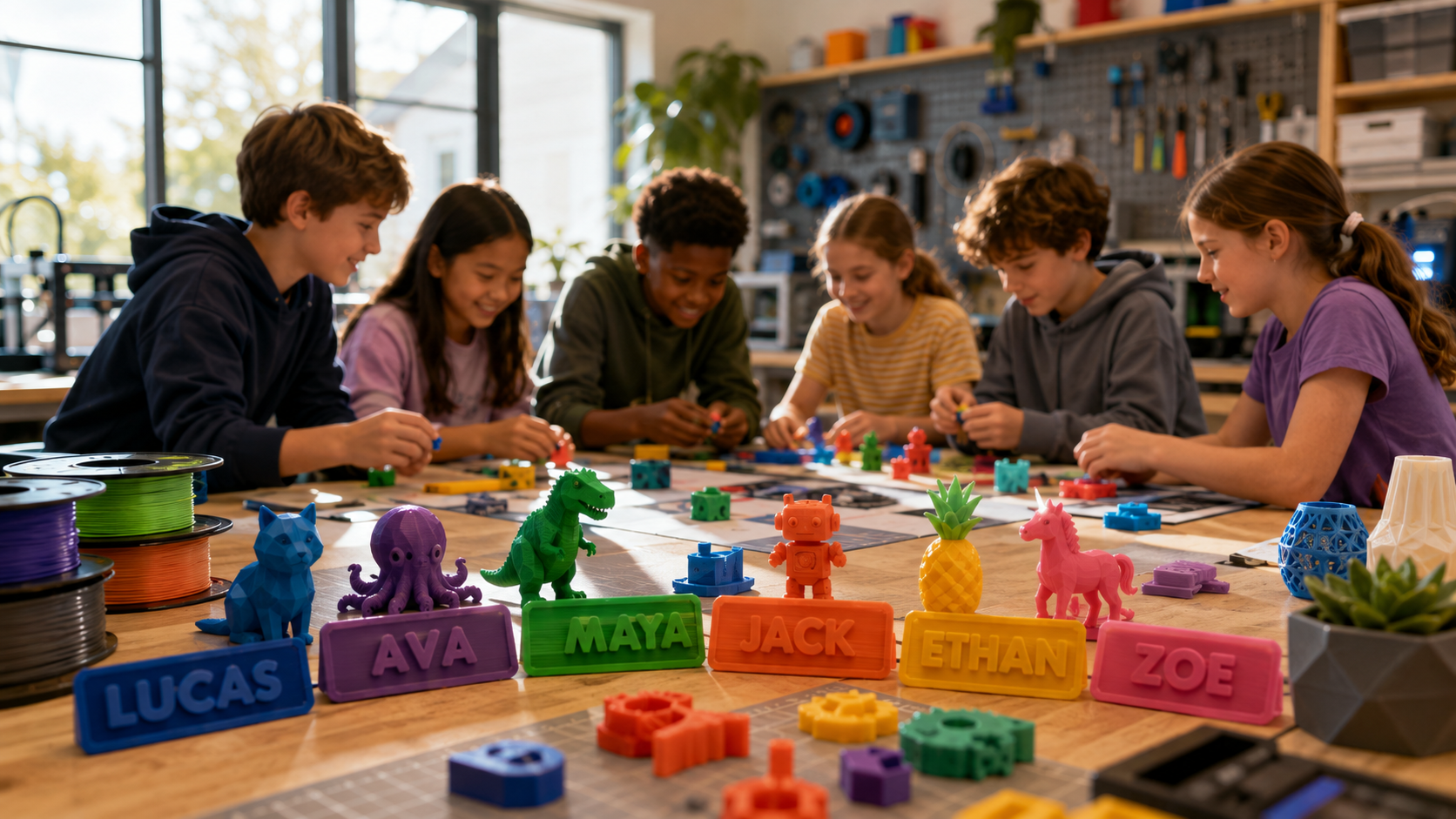
01. Personalized Name Tag or Keychain

The child types their name, adjusts the size, taps print. Fifteen minutes later they hold something with their own name on it. That is a strong first-success moment — the combination of personalization and speed is hard to beat.
Flat geometry, zero supports, immediate result. This is the project that makes a child say 'what can I make next?' — which is exactly the question you want them asking after session one.
|
Ages |
Print Time |
Skill Learned |
|
5+ |
15–25 min |
Basic design, personalization, immediate reward |
02. Playdough Stamp

A handle with a raised shape on the base — star, heart, animal footprint, initial letter. Press into playdough and pull up. Instant impression. Print time is 15 to 20 minutes. The child can use it the same afternoon.
This is particularly popular with ages 4 to 7, who combine it with playdough immediately and do not need any explanation of what 3D printing is to find it satisfying. The combination of making the stamp and using the stamp is a complete creative loop in one afternoon.
|
Ages |
Print Time |
Skill Learned |
|
4+ |
15–20 min |
Immediate tactile use, creative play, fine motor |
03. Spinning Top

One of the cleanest quick-win projects available. Symmetrical, no supports, prints in 15 to 25 minutes, works immediately. The child taps it and it spins. That is all the explanation needed.
Bonus: print two tops with different proportions and let the child run the experiment of which one spins longer. No lesson plan required. The question — why does this one win? — comes from the child, not the parent.
|
Ages |
Print Time |
Skill Learned |
|
6+ |
15–25 min |
Physics, simple experimentation, kinetics |
04. Bookmark with Character

Flat, no supports, 15 to 25 minutes. A small character or design along the top edge — a dinosaur, a cat, a geometric shape. For a child who reads, this goes straight into a book and serves a real function. For a child who doesn't, it is still a personalized object they made and can give away.
The gift angle matters. A 6-year-old who gives their teacher a bookmark they printed themselves has done something genuine and creative. This is the project that first opens the idea of 3D printing as a way to make gifts.
|
Ages |
Print Time |
Skill Learned |
|
5+ |
15–25 min |
Practical object making, gift-giving, immediate use |
Creative Play — 20 to 45 Minutes
These four projects take slightly longer but produce objects with stronger play value. They work well as second or third session projects once a child has one quick win behind them.
05. Small Animal Figurine

A pre-optimized standing cat, dinosaur, or dog from a curated library. These have been tested to print without supports on default settings. The child didn't design it, but they made it — and that distinction feels important to them at this age.
The model matters more than most people think. A random animal from an unverified platform can fail on the first layer or have poor detail. Models from a tested library print predictably and look finished. The difference between a child who feels proud and a child who feels disappointed is often just the model source.
|
Ages |
Print Time |
Skill Learned |
|
4+ |
20–45 min |
Appreciation of 3D printing, creative ownership |
06. Wobble Toy or Rocking Animal

A small figure with a curved base that rocks when tapped. No supports, no assembly, 20 to 35 minutes. The rocking motion surprises children every time — they expected a static object and got a moving toy. That surprise is worth more than the complexity of the project.
This works particularly well as a second session project after a name tag or stamp. The child now knows what printing looks like and is ready for an object that does something. The wobble is the payoff.
|
Ages |
Print Time |
Skill Learned |
|
4+ |
20–35 min |
Cause and effect, satisfaction with motion |
07. Fidget Ring (Print-in-Place)

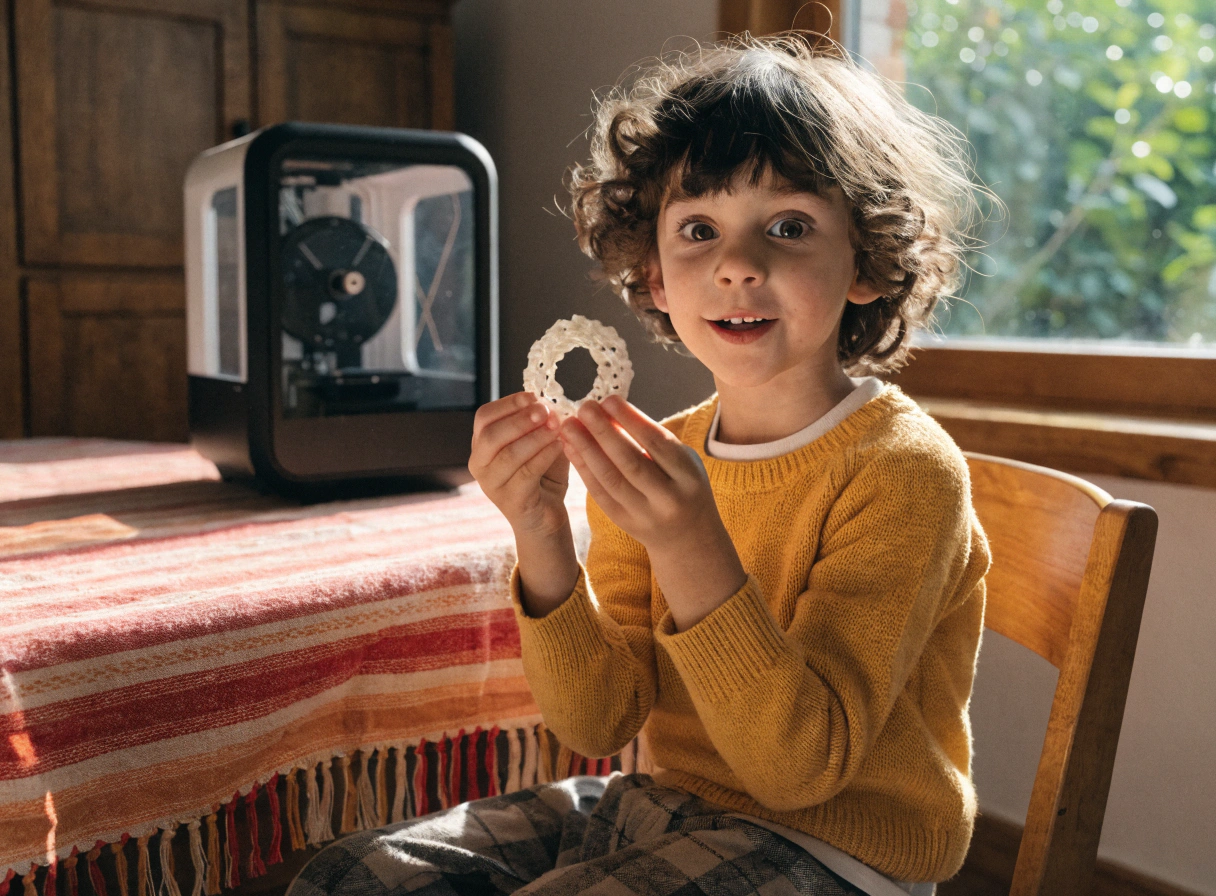
The inner band rotates freely around the outer frame straight off the build plate — no assembly. Most children have never seen anything that works like this and are genuinely baffled and delighted in equal measure. Under 30 minutes, zero assembly, and the first interaction with the finished object is immediate play.
This is the first print-in-place project most children encounter. The concept — that moving parts can come off the printer already assembled — is genuinely surprising. It shifts how a child understands what 3D printing is capable of. That shift happens in the moment they pick it up and spin it.
|
Ages |
Print Time |
Skill Learned |
|
6+ |
20–30 min |
Mechanical curiosity, print-in-place concept |
08. Mini Coin Tray or Ring Dish

A simple shallow tray — octagonal, round, or shaped like a leaf. No supports, one piece, 25 to 40 minutes. Immediately useful: coins, small toys, jewelry, keys. This is the project that shifts a child's understanding of what the printer is for.
Before this, the printer makes toys. After this, the printer makes useful things. That shift matters for long-term engagement. A child who sees the printer as a source of both toys and household objects has twice as many reasons to keep using it.
|
Ages |
Print Time |
Skill Learned |
|
7+ |
25–40 min |
Functional design, spatial thinking, practical use |
Step-Up Projects — 60 to 90 Minutes
These two projects take longer and have a higher payoff. They are best as third or fourth session prints, once a child has a few successful quick wins behind them and is ready for something with more visual impact.
09. Flexi Articulated Animal (Print-in-Place)

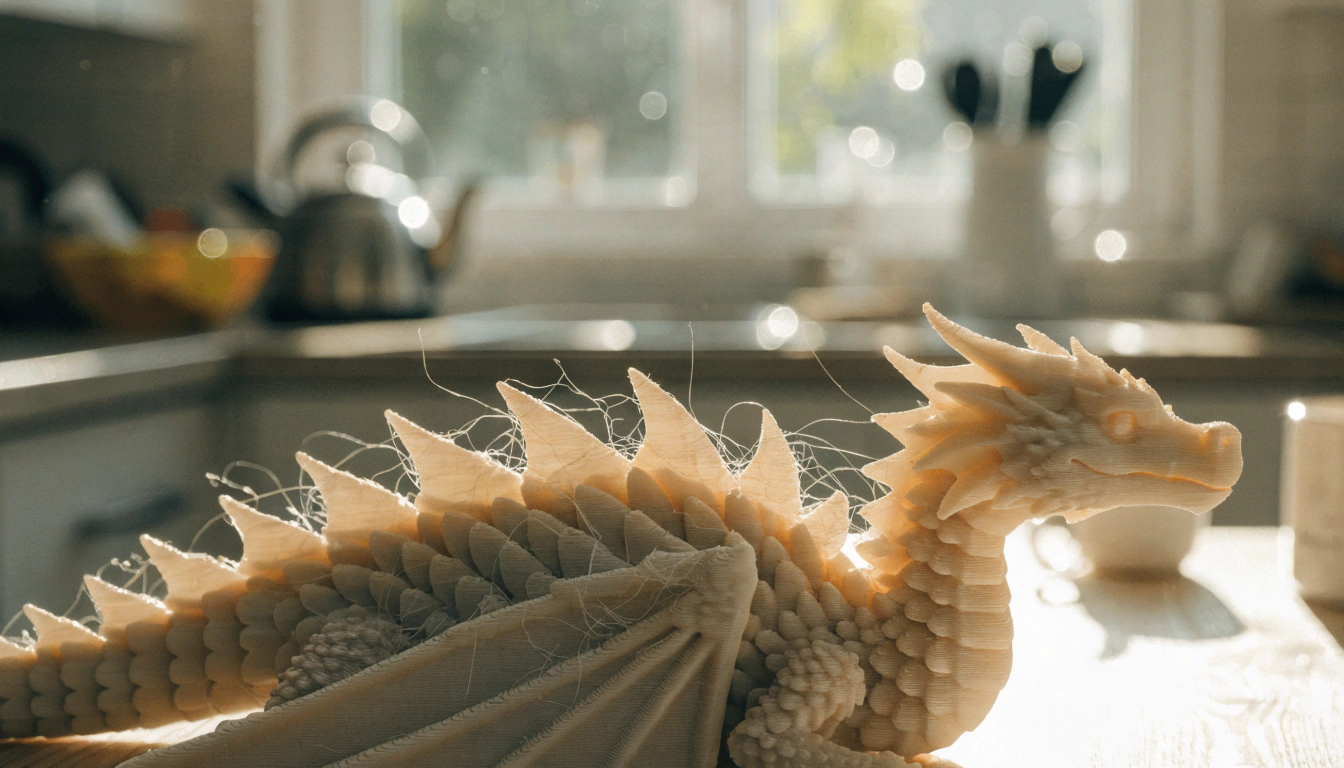
A dragon, axolotl, or caterpillar with print-in-place joints — comes off the build plate already flexible and moving. Unlike the simple figurine in project 5, this one bends and poses. The jump in complexity is small. The payoff is significantly higher.
Children carry these around for weeks. The flexibility is genuinely surprising to anyone who has not seen it before. For a child who has already printed a fidget ring, this feels like the next logical step — the same print-in-place concept, scaled up into a full creature. You can find a wide range of these designs among
You can find a wide range of these designs among creative prints for kids on Cults3D — a useful source for newer and more creative toy designs beyond the standard platforms.
|
Ages |
Print Time |
Skill Learned |
|
6+ |
60–90 min |
Advanced print appreciation, tactile play, imaginative play |
10. Personalized Bag Tag or Gift Label

A tag with the child's name and a small decorative design — for a school bag, bedroom door, or as a gift to a sibling or grandparent. The gift angle is the most powerful part of this project. A 7-year-old who gives their grandparent a 3D-printed tag they made themselves has done something genuinely creative and thoughtful.
This project closes the loop on what 3D printing is for. It started with a name tag for themselves. It ends with a personalized gift for someone else. That progression — from 'I made this for me' to 'I made this for you' — is what converts a child from a one-session experimenter to a habitual maker.
|
Ages |
Print Time |
Skill Learned |
|
5+ |
20–30 min |
Gift-making, personalization, creative pride |
All 10 Projects at a Glance
|
# |
Project |
Age |
Print Time |
Category |
Supports? |
Assembly? |
|
01 |
Personalized Name Tag / Keychain |
5+ |
15–25 min |
Quick Win |
None |
None |
|
02 |
Playdough Stamp |
4+ |
15–20 min |
Quick Win |
None |
None |
|
03 |
Spinning Top |
6+ |
15–25 min |
Quick Win |
None |
None |
|
04 |
Bookmark with Character |
5+ |
15–25 min |
Quick Win |
None |
None |
|
05 |
Small Animal Figurine |
4+ |
20–45 min |
Creative Play |
None |
None |
|
06 |
Wobble Toy / Rocking Animal |
4+ |
20–35 min |
Creative Play |
None |
None |
|
07 |
Fidget Ring (Print-in-Place) |
6+ |
20–30 min |
Creative Play |
None |
Print-in-place |
|
08 |
Mini Coin Tray / Ring Dish |
7+ |
25–40 min |
Creative Play |
None |
None |
|
09 |
Flexi Articulated Animal |
6+ |
60–90 min |
Step-Up |
None |
Print-in-place |
|
10 |
Personalized Bag Tag / Gift Label |
5+ |
20–30 min |
Step-Up |
None |
None |
What Makes a Curated Library Different

The projects above are chosen for high success rates. But 'high success rate' is partly a property of the model and partly a property of how well it has been tested on your specific printer.
A model downloaded from a random platform may have been designed for a completely different printer with different settings. The first layer might not stick. The print time estimate might be wrong. Overhangs that need no supports on one machine fail on another.
The AOSEED Toy Library exists specifically to solve this. Every model in the library has been verified on the printer it is designed for — default settings, standard PLA, accurate print time. A child who browses and taps print gets a successful first print, not a troubleshooting session. This is especially important for the quick-win projects above, all of which are represented in the weekly-updated library.
For first-time projects, the library reduces risk significantly. Once a child has five to ten successful prints behind them, they are ready for external platforms — Printables, Thingiverse, Cults3D — with the confidence to know what a good model looks like and the resilience to handle the occasional failed print without giving up.
Setting Up the First Session for Success
Even with the right project, the session context matters. Here is the setup that gives a first-time child the best possible experience.
- Choose the project before the session starts. Do not leave the child browsing for 20 minutes feeling paralyzed by choice. Pick one project and have it ready.
- Check the filament before you begin. Load a fresh spool. Running out mid-print is one of the most common causes of first-session disappointment.
- The child presses the final button. Whatever else you set up, make sure the child is the one who taps go. That moment of 'I started this' matters for ownership of the result.
- Stay nearby but do not hover. Let the child watch the printer, walk away, check on it. This is normal printing behavior and models healthy engagement with the machine.
- Have the next project ready before the current one finishes. While the print runs, browse the library together and pick what comes next. This prevents the gap that can end a session early.
⚠ The Project That Looks Perfect But Isn'tArticulated dragons and multi-part robots look spectacular in photos and seem like the ideal first print. In practice they have long print times, often require supports, and need careful post-processing to function. These are great projects for a child with ten successful prints behind them. For print number one, they are the fastest route to a discouraged child and a printer going into a closet. Save the dragons for month two. |
What Comes After These 10

Once a child has worked through five or six of the projects above, the dynamic shifts. They understand the printer. They know what a good print looks and feels like. They have built enough resilience to handle an occasional unexpected result without losing interest.
This is when the more complex projects become worth attempting: multi-part mechanical builds, longer articulated creatures, functional STEM models like gear sets or planetary systems. Creation kits — where printed parts combine with motors and mechanisms to make working objects — are the natural next step for children who enjoy both making and engineering.
For older children ready for that level of complexity, the AOSEED X-MAKER supports PETG alongside PLA and has a 3.5-inch touchscreen for more hands-on control. It handles larger mechanical builds than the X-MAKER JOY and is designed for children aged 9 to 16 who want STEM projects and creation kit builds.
For a first print with a young child, start with the quick wins above. The step-up projects are still ahead of them. The goal of session one is a single held object and the question 'what do I make next?'
FAQs
What are the best first 3D printer projects for kids?
The best first projects share four properties: they print under 60 minutes, require no supports, produce a single piece with no assembly, and result in something functional or personalized. From this list: a name tag, a playdough stamp, or a spinning top. All three produce an immediate result the child can hold in a single session.
What is 3D printing for kids, and why do children enjoy it?
3D printing for kids is the process of turning a digital model into a physical plastic object — selecting a design, tapping print, and watching it build layer by layer. Children enjoy it because it converts imagination into a tangible result that they made themselves. The tactile satisfaction of holding something you created is genuinely different from other creative activities. The iterative nature — print it, improve it, print again — also builds persistence naturally.
How do I stop my child from getting frustrated with 3D printing?
Project selection is the most effective strategy. Avoid long prints, models requiring supports, and multi-part assemblies for first sessions. Stick to flat or simple geometry that prints under an hour and produces something immediately usable. Have the next project chosen before the current one finishes. Treat a failed print as a learning moment — ask the child what they think went wrong before stepping in.
For a step-by-step guide to getting started, step-by-step print tutorials on Instructables are a reliable starting point for parents setting up their first session.
Can a 5-year-old do 3D printer projects?
Yes, with the right printer and project selection. A 5-year-old can browse a library, select a model, and tap print — the full experience is achievable with an app-led family printer. The adult handles filament loading and print removal for the first few sessions. By session three or four, most 5 to 6-year-olds can run the browsing and printing steps independently. Projects 1, 2, 4, 5, and 6 from this list are all appropriate for ages 4 to 6.
What is 3D printing for kids near me?
Many public libraries and community makerspaces offer access to 3D printing and workshops for children. Search 'makerspace near me' or check your local library's website for maker programming. These are good places to try 3D printing before buying a printer. Schools are also increasingly offering printers through STEM programs. A first session at a makerspace is a low-risk way to confirm a child's interest before investing in a home setup.
Where can I find 3D printer models for kids?
For first-time projects with verified reliability, a curated library tested for your printer's default settings is the best starting point. For broader free models: Printables.com has an excellent kids' category with download counts; Thingiverse has the largest library; Cults3D has strong creative and toy sections. When choosing from any external platform, look for models marked 'no supports needed' and check the comments for real-world print results.
What is a print-in-place model, and why is it good for beginners?
A print-in-place model has moving parts that are already assembled — the joints come off the build plate as a single unit, with no glue or assembly steps. A fidget ring whose inner band already spins, or a dragon whose tail already flexes. These are excellent beginner projects because the child's first interaction with the finished object is one of genuine surprise — it works immediately, which is the strongest possible positive first impression.
Do I need design skills to do 3D printer projects with my child?
No. Every project on this list can be printed from a pre-made library model with zero design involvement. The child browses, chooses, and prints. Design skills become relevant later when a child wants to create something specific or solve a particular problem — and even then, tools like Tinkercad make basic design accessible from around age 7 to 8. For first sessions, design is not required and should not be introduced as a requirement.
What 3D printing toys for kids are most popular to make at home?
Articulated flexi animals — dragons, sharks, axolotls — are consistently the most-downloaded kids' 3D printing models. Their print-in-place movement impresses children and adults equally. After those, personalized name tags and keychains, spinning tops, and small animal figurines are the most requested first projects. For older children, creation kits build — where printed parts combine with mechanical components to make working toys — are increasingly popular because they combine making with engineering.
Sources
- MatterHackers — Easy 3D Printing Projects for Beginners, Explore easy 3D printing projects for beginners on MatterHackers, 2025.
- YouMagine — Easy 3D Printing Projects for Kids, Check out YouMagine's collection of easy 3D printing projects for kids, 2025.
- Thingiverse — Kids 3D Print Projects, Find kids 3D print projects on Thingiverse, 2025.
- MyMiniFactory — Kids and Classroom 3D Printing Projects, Browse classroom and kids 3D printing projects on MyMiniFactory, 2025.
- Tinkercad — Beginner 3D Printing Projects, Explore beginner-friendly 3D printing projects with Tinkercad, 2025.


Further reading

Thanksgiving STEM Activities for Kids: Table Projects and Simple Engineering Challenges

Halloween STEM Activities for Kids: Spooky Builds That Teach Real Science

STEM Crafts for Kids: Build, Decorate and Test