STEM Apps for Kids That Turn Screen Time Into Something They Can Hold
Some screen time asks a child to watch. Better screen time asks them to fix a broken loop, move the pivot on a lever, or stretch a box until the lid fits. Good STEM apps are built for the second kind.
The payoff shows up after the tablet goes dark. A coding maze can be rebuilt on the floor with tape. A name tag designed on screen can be printed and held.
The apps below are grouped by subject, each with an offline follow up. Ages come from developer pages. Prices change often, so check the store before you subscribe.
Quick Picks by Goal
|
If your child wants to... |
Start with |
Ages |
Then try this offline |
|
Code before they can read |
Kodable Basics |
4 to 10 |
A floor maze made with tape and arrow cards |
|
Tell stories with code |
ScratchJr |
5 to 7 |
A six box paper storyboard, drawn first |
|
Grow from picture blocks to Python |
Tynker |
5 to 7 Junior, then 7 to 12 and 13+ |
A flowchart of one finished program |
|
Design a real object |
Tinkercad |
Upper elementary and up |
Measure the model, then print it or mock it up in cardboard |
|
Learn about real space |
NASA app |
Any age with a parent |
Watch the ISS pass over your yard |
|
See how machines work |
Simple Machines (Tinybop) |
Early grades |
A ruler and block lever |
|
Practice math in a game |
Prodigy Math |
Grades 1 to 8 |
Solve one question aloud with coins |
What Are STEM Apps for Kids?
STEM apps are learning tools built around science, technology, engineering, and math. They teach through puzzles, simulations, coding challenges, virtual experiments, and design tools.
Few apps cover all four subjects, and that is fine. What matters is whether the child makes choices and sees what those choices do.
What Makes an App a STEM App
Look for decisions with consequences. If a child lines up commands and the character walks into a wall, the app just taught debugging. If they raise a ramp and the ball overshoots the cup, they ran an experiment.
A video followed by a quiz is closer to a digital textbook. The best sign is a create mode: a blank game, an empty build plate, a maze editor.
STEM Apps vs. Educational Apps vs. STEM Games
The three labels overlap on app store pages. Here is how they usually differ.
|
Label |
What it usually means |
Examples |
What the child mostly does |
|
Educational app |
Any learning content in any subject |
Spelling games, digital encyclopedias |
Recall and repeat |
|
STEM app |
Science, technology, engineering, or math learned by doing |
Tinkercad, EveryCircuit, ScratchJr |
Design, test, and revise |
|
STEM game |
STEM ideas wrapped in levels, points, and characters |
Lightbot, Prodigy Math, Thinkrolls |
Solve a goal inside set rules |
The label matters less than what your child's hands and head are doing.
The Screen to Table Test: How to Judge Any STEM App

The American Academy of Pediatrics now asks families to focus on quality, context and conversation rather than counting hours alone. That favors apps that give kids something real to do.
Run any app through five questions. Three or more yes answers usually means it leads somewhere past the screen.
|
Question |
A yes looks like |
A no looks like |
|
1. Do the child's choices change the outcome? |
Different commands send the robot down different paths |
Every tap triggers the same animation |
|
2. Can mistakes be seen and fixed? |
A weak bridge sags, and the child rebuilds it |
Wrong answers just reset the level |
|
3. Is there a create mode, not only levels? |
Maze makers, blank projects, design tools |
Preset puzzles only |
|
4. Could the idea be rebuilt with real materials? |
Levers, mazes, circuits, models |
Trivia and reward tapping |
|
5. Is the app upfront about ads, purchases, and data? |
Plain pricing and no pop up offers aimed at kids |
Surprise paywalls and in game shops |
|
Quick check after the first session Ask your child one question: "What could we make from that?" If neither of you has an answer, try a different app next week. |
Coding and Logic STEM Apps for Kids
Coding has the deepest bench of kids apps. Young children start with picture commands or snap blocks, then move to Python and JavaScript once the logic feels familiar.
|
App |
Ages |
How it teaches |
Offline follow up |
|
ScratchJr |
5 to 7 |
Snap graphical blocks to build stories and games |
Draw a storyboard, then compare it with the finished program |
|
Kodable Basics |
4 to 10 |
Picture commands with no reading required |
Tape maze with a sibling playing the robot |
|
Tynker |
5 to 7 Junior; 7 to 12; 13+ |
Picture coding that grows into Python and JavaScript |
Turn one program into a flowchart |
|
Lightbot |
Beginners |
Plan commands to light up tiles |
Paper grid race for the shortest route |
|
Hopscotch |
School age, iPad |
Build games from a blank project |
Sketch the game rules before coding |
|
Blockly Games |
Beginners, browser |
Visual blocks that lead into JavaScript |
Command cards for a real chore |
ScratchJr
With ScratchJr, young children ages 5 to 7 program their own interactive stories and games. It came from the MIT Media Lab and Tufts University. Kids snap blocks together to make characters move, jump, and talk, so every project doubles as a plan: first, next, last.
Try this offline: Draw six scenes on paper before opening the app, then check which ones the finished program matched.
Kodable

Kodable Basics is built for ages 4 to 10 and uses picture commands, so no reading or typing is needed. It covers sequencing, conditionals, loops, functions, and debugging. Its Maze Maker turns players into level designers.
Try this offline: Tape a five by five grid on the floor. One person lays arrow cards, and the other walks the route like a robot, exactly as written.
Tynker
Tynker Junior uses tap picture coding with voice overs for ages 5 to 7. The main Tynker curriculum then splits into a 7 to 12 track (game design, Minecraft modding, robotics) and a 13+ track (Python, JavaScript, data science).
Try this offline: Turn one finished program into a flowchart on paper. If your child can draw it, they understand it.
Lightbot, Hopscotch, and Blockly Games
Lightbot is pure logic. Kids plan commands that walk a robot across tiles, and loops show up without the jargon. Wrong order? The robot stops short.
Hopscotch starts from a blank project. Have kids sketch the goal, the rules, and the ending on paper before they touch the iPad.
Blockly Games from Google is free in a browser. Puzzles start with blocks and finish with JavaScript. Offline, write commands on index cards and sort them into order for a chore like making a sandwich.
Science and Discovery STEM Apps for Kids
Science apps put planets, organs, and elements in view. The best follow up is observation: one real thing to find, draw, or measure.
|
App |
Subject |
Best use |
Real world follow up |
|
NASA app |
Space and Earth science |
Missions, images, NASA+ video |
Moon or ISS watch from the yard |
|
Star Walk Kids |
Astronomy |
Naming what is overhead tonight |
Sketch one constellation |
|
The Human Body (Tinybop) |
Anatomy |
Watching body systems move |
Label a traced body outline |
|
Toca Lab: Elements |
Chemistry basics |
Playful first look at elements |
Sort household objects by material |
|
BrainPOP |
Many school subjects |
Short animated lessons |
Build a model of one idea |
NASA App

The official NASA app streams NASA+ plus images, news, and podcasts. NASA's apps page also lists Spot the Station, which tells you when the International Space Station will be visible from where you live.
Try this offline: Check the next ISS pass, set an alarm, and step outside together. A bright dot crossing the sky sticks longer than any video.
Star Walk Kids
Use it before going outside, not instead. Pick one target, like the Moon, then pocket the phone and sketch what is really there.
The Human Body and Toca Lab: Elements
Both are openers. Follow The Human Body with a traced outline and labeled organs. Follow Toca Lab with a sorting game: metal, plastic, wood, glass.
|
Keep real chemistry safe A digital reaction is not a recipe. Do not mix household chemicals to copy something that happened on screen. Stick to supervised kits made for kids. |
BrainPOP
BrainPOP Jr. covers kindergarten to grade 3, and BrainPOP Family covers grades 3 to 8. Treat each short film as the opener, then ask for a labeled diagram or small model of one idea.
Engineering, Building, and 3D Design STEM Apps
Engineering apps let kids change a design and watch what happens. Design, test, fail, revise. A screen makes early mistakes cheap.
|
App |
What kids build |
Main skill |
Physical version |
|
Tinkercad |
3D models from basic shapes |
Measurement and geometry |
A 3D print or a cardboard mockup |
|
Simple Machines (Tinybop) |
Levers, pulleys, wedges, screws |
Force and motion |
Ruler and block lever |
|
The Robot Factory (Tinybop) |
Robots from mixed parts |
Design tradeoffs |
Cardboard robot |
|
Inventioneers |
Chain reaction gadgets |
Cause and effect |
Cup, string, and ramp contraption |
|
EveryCircuit |
Simulated circuits |
Electricity basics |
Battery powered learning kit, supervised |
Tinkercad
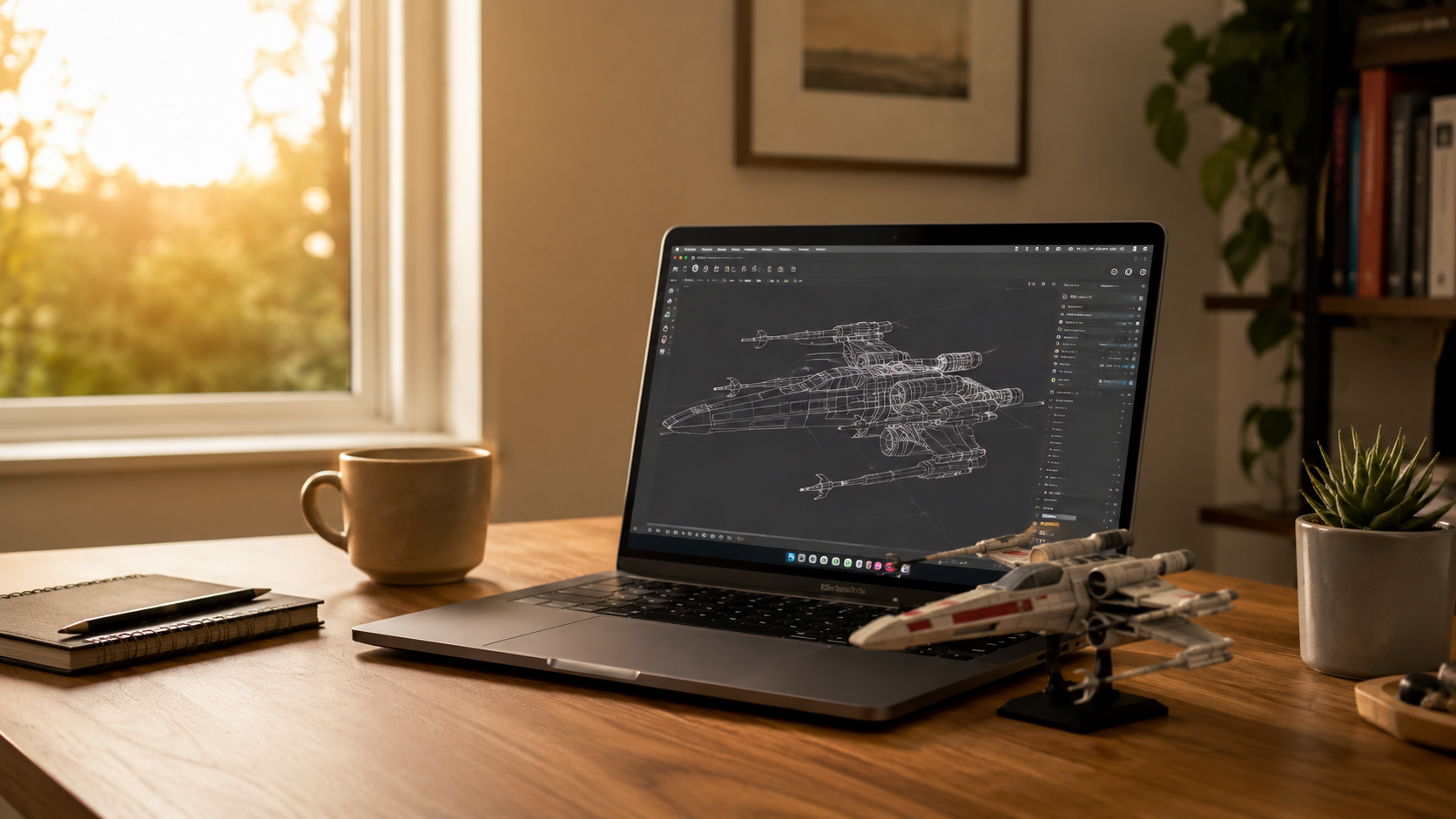
Tinkercad is a free browser app from Autodesk for 3D design, electronics, and coding. Kids drag in shapes, resize them in millimeters, and group them into one object that can go straight to a 3D printer.
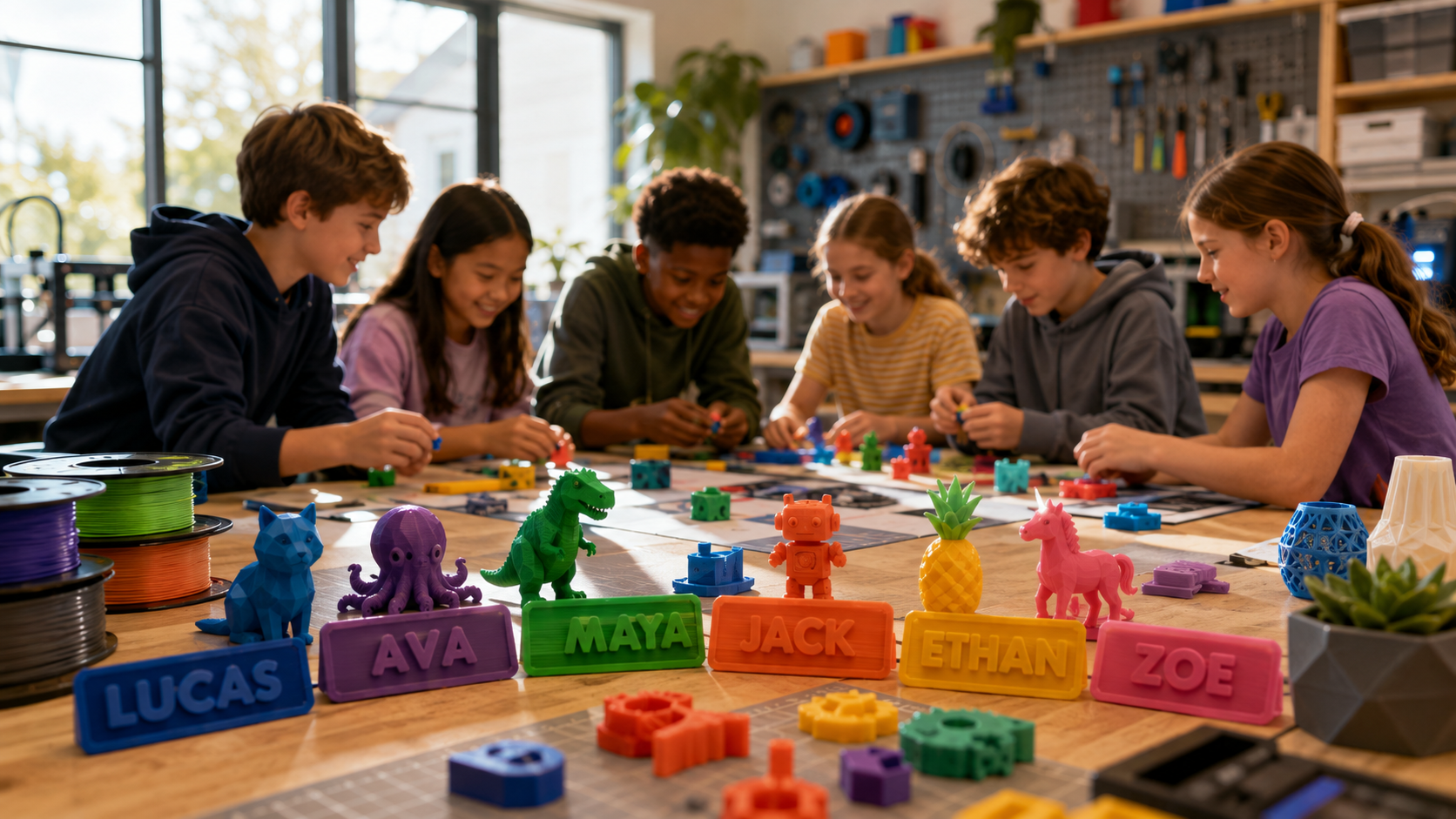
Start small. A name tag, game token, or pencil cup prints fast and gives a clear goal.
Simple Machines and The Robot Factory
Both come from Tinybop. Simple Machines lets kids tweak levers, pulleys, wedges, and screws. The Robot Factory has them build a bot and run it through a physics test course.
Try this offline: Rebuild the robot from boxes and paper tubes. When a part cannot be made, inventing a substitute is the engineering decision.
Inventioneers and EveryCircuit
Inventioneers uses chain reactions to solve puzzles, and the lesson lands when the first setup fails. EveryCircuit suits older kids, simulating current before anyone touches hardware.
|
Circuits stay low voltage When a child is ready to move from EveryCircuit to real parts, use a battery powered learning kit made for kids and stay nearby. Wall outlets are never a substitute. |
|
WHEN THE SCREEN DESIGN NEEDS TO BECOME A REAL OBJECT Tinkercad teaches the modeling. At home, the missing piece is usually the printer: something enclosed, quiet enough for a living room, and simple enough that the child runs most of the process. AOSEED builds its 3D printers for kids around that exact handoff. Kids design or customize a toy in the AOSEED app using AI prompts, themed mini design apps, or beginner 3D tools. Then they send it to a fully enclosed printer with one tap. The parent's role shrinks to setup and a quick check before printing. |
Math and Problem Solving STEM Apps for Kids
Math apps get better when numbers serve a goal. Pick tools that make a child reason, not tap until the answer flashes green.
|
App |
Focus |
Watch for |
Offline check |
|
Prodigy Math |
Grades 1 to 8 practice inside a fantasy game |
Game time outpacing math time |
Explain one problem with coins |
|
Monster Math |
Arithmetic inside a story |
Speed over understanding |
Build the problem with blocks |
|
Math Makers |
Operations and fractions through visual puzzles |
Guessing through levels |
Fraction strips cut from paper |
|
Thinkrolls |
Logic and spatial puzzles |
Frustration on harder levels |
Ramp and tube obstacle course |
|
Brain It On! |
Physics puzzles with many solutions |
Hunting for hints |
Rebuild one puzzle with cups and a ball |
Prodigy Math and Monster Math
Prodigy wraps curriculum aligned questions in a role playing game, and Monster Math uses a monster story. Game time and math time are not the same thing.
Now and then, ask your child to solve one question on paper and talk you through it. Two minutes tells you more than a week of badges.
Thinkrolls and Brain It On!

Both reward prediction. Before a real ball rolls down a real ramp, ask what will happen, compare, then change one thing. That is a controlled experiment, run with a shoebox.
|
A child who can show the math with objects understands it. A child who can only replay the level may just remember the answer. |
Six Ways to Turn App Time Into Something Kids Can Hold
The easiest upgrade to STEM screen time is a physical result. Cardboard, tape, blocks, and a notebook cover most of these.
|
Project |
Pairs with |
Time |
Materials |
|
Print a design they made |
Tinkercad or a kids 3D design app |
30 to 60 min plus print |
Ruler, 3D printer |
|
Build the digital structure |
Construction or bridge games |
20 to 40 min |
Cardboard, tape, books for weight |
|
Recreate a physics puzzle |
Brain It On!, Thinkrolls |
15 to 30 min |
Ramp, cups, ball |
|
Turn a coding level into a floor maze |
Kodable, Lightbot, ScratchJr |
15 to 20 min |
Masking tape, arrow cards |
|
Test a simple machine |
Simple Machines |
10 to 20 min |
Ruler, small block, coins |
|
Keep a STEM project notebook |
Any app |
5 min per entry |
Notebook, pencil |
1. Print a Design They Made

This is the most direct bridge from screen to hand. Keep the first model tiny and ask the child to show its real size with a ruler before printing.
Measure the print when it comes off the plate. A tight hole or thin wall sends it back to the file for version two, which is where most of the learning happens.
For ages 4 to 12, a beginner 3D printer for kids with a built in model library lowers the first hurdle. The X-MAKER JOY includes access to thousands of ready to print models, 16 mini design modules, and a built in camera, so kids can customize a toy before designing from scratch.
2. Build the Digital Structure Out of Cardboard
Turn a tower or bridge from an app into a cardboard challenge with one measurable rule: span 12 inches, or hold five paperback books.
The cardboard version will sag or tip in ways the app never showed. Each failure is a reason to redesign.
3. Recreate a Physics Puzzle at the Kitchen Table
Rebuild a simple ramp, balance, or rolling puzzle with household materials. Ask for a prediction, then change one feature per run.
Write it down. A three row table turns play into an experiment.
4. Turn a Coding Level Into a Floor Maze
Tape a grid with a start, a finish, and a few obstacles. The child lays out every command before the "robot" moves: forward, turn left, turn right, repeat.
When the robot bumps something, find the first wrong instruction and fix only that. That is debugging.
5. Test a Simple Machine
Lay a ruler across a small block and put coins on one end. Slide the block toward the coins, press the other end, and ask what changed.
Older kids record distances and coin counts. Younger kids draw each setup.
6. Keep a STEM Project Notebook
One notebook ties the apps together. Each entry gets a question, a prediction, a sketch, the result, and one change for next time.
After a few months, it shows progress far better than a pile of finished app levels.
|
Stock a small STEM box near the tablet Cardboard and scrap paper, masking tape, craft sticks, straws, string, building blocks, a ruler, child safe scissors, paper cups, bottle caps, and the project notebook. When materials are within reach, a digital idea becomes a physical test in minutes. |
STEM Apps for Kids by Age
Age labels are a starting point. Two 8 year olds can differ a lot in reading and patience, so watch the first session and adjust.
|
Age band |
What fits |
Apps to try |
Offline project style |
|
4 to 6 |
Picture commands, big buttons, short rounds |
Kodable Basics, ScratchJr (from 5), Tynker Junior (from 5) |
Five to ten minute tasks |
|
7 to 9 |
Longer sequences, first game design, simple 3D |
Tynker, Lightbot, Hopscotch, Simple Machines |
Two or three rounds of testing |
|
10 to 12 |
Original games, detailed models, first typed code |
Tinkercad, Blockly Games, Tynker 7 to 12 track |
Projects with set requirements |
|
13 and up |
Real languages, CAD, circuit simulation |
Tynker 13+ track, Tinkercad, EveryCircuit |
Measured prototypes and documented revisions |
Ages 4 to 6
Go visual. Kodable Basics starts at 4 with picture commands, and ScratchJr and Tynker Junior pick up at 5. Keep offline tasks short: sorting, block patterns, ramp races.
Ages 7 to 9
Longer command chains, block coding, and simple 3D shapes start to click. Pick physical projects that need two or three test rounds, like a marble run aimed at a cup.
Ages 10 to 12
Independence is the shift. Hand over requirements instead of instructions: a container that holds exactly one AA battery, or a game with three rules and a clear ending.
Ages 13 and Up
Teens can leave kids apps behind. Tynker's older track reaches Python, JavaScript, and data science, while Tinkercad and circuit simulators become real tools for measured prototypes and parts that must fit.
Signs a Child Is Ready for Harder Apps
Watch behavior, not birthdays. Basic levels feel repetitive, the child works alone, and they ask to make their own levels.
Productive frustration leads to another try. Constant confusion about the interface means the jump was too big.
When to Pick a Coding App vs. When to Pick a Design App
Most families need one good fit for their child right now, not ten apps.
Choose a coding app first when your child:
• Loves puzzles, board games, or giving other people directions
• Wants to make their own video game or animated story
• Is still a pre reader and needs picture commands (Kodable Basics, ScratchJr, Tynker Junior)
• Gets hooked on "one more level" and enjoys finding the shortest route
Choose a design or building app first when your child:
• Builds with blocks, bricks, or cardboard for hours
• Asks how things work, or takes toys apart to find out
• Wants to keep, gift, or play with what they make
• Would enjoy seeing a screen model turn into a printed object on a kids 3D printer
Check These Before You Pay
|
"Free" can mean four different things An app may be fully free, have a limited free tier, offer a short trial, or lock most content behind a subscription. Before handing over the device, check the current store listing for price, ads, in app purchases, chat features, and the privacy policy. Also confirm device support, and whether progress follows the child between a school tablet and a home one. |
Conclusion
The best STEM apps for kids give a child a problem, a way to test it, and a reason to try again. ScratchJr, Kodable, and Tynker build coding logic, NASA's apps point kids at the real sky, and Tinkercad turns engineering into something they can resize and rebuild.
The real gain comes from the step after the app. A taped maze. A cardboard lever. A sketch of the Moon. A small toy printed from a design your child made on Tuesday.
If that last step appeals, AOSEED's family 3D printing platform connects the design app and the printer in one guided workflow. The X-MAKER JOY is $239 (list price $339) for ages 4 to 12, and the X-MAKER is $359 (list price $509) for ages 9 to 16 who want bigger builds. The screen becomes the plan for what gets made next.
FAQs
What Is a STEM App?
A STEM app is a digital tool that helps children learn science, technology, engineering, or math by doing. ScratchJr lets ages 5 to 7 program stories with picture blocks, and Tinkercad offers free 3D design whose files can be printed. Neither covers all four subjects, and neither needs to. Quick test: after a session, ask what your child could now make or explain.
What Is a STEM Activity for Children?
A STEM activity is any task where a child uses science, technology, engineering, or math to solve a problem, like building a paper bridge or timing paper airplanes. Good ones follow a loop: predict, build, measure, redesign. Try this: give your child one small problem, such as moving a ball across the table without touching it, plus five materials, and let them find the answer.
Where Can I Find STEM Games Online?
Start with developer sites and official app stores, not game portals packed with ads. ScratchJr is free for ages 5 to 7, Kodable Basics covers ages 4 to 10, and Blockly Games runs free in a browser. NASA's apps page lists about a dozen space and Earth science apps. Before settling on one, watch what your child does. Planning and fixing beat tapping for rewards.
What Are the 10 Best Educational Apps?
No single top 10 fits every child. For STEM, a strong shortlist is ScratchJr, Kodable, Tynker, Tinkercad, the NASA app, Star Walk Kids, Simple Machines, Prodigy Math, BrainPOP, and Lightbot. They do very different jobs. Pick the one closest to what your child already loves, NASA for space fans and Tinkercad for builders, and add a second only after a few good weeks.
What Is the Best Age to Start STEM?
There is no start date. Toddlers do STEM when they stack blocks or race cars down a ramp. Digital tools fit once the interface does: Kodable Basics starts at 4 with no reading, and ScratchJr and Tynker Junior start at 5. Sit in on the first sessions. If your child is making choices, the timing is right. If menus stall them, wait a few months.
What Is STEM for 6 Year Olds?
For a 6 year old, STEM means short, concrete challenges with patterns, sequences, counting, and cause and effect. ScratchJr, built for ages 5 to 7, fits well, and Kodable Basics and Tynker Junior need little reading. Off screen, try block towers, marble ramps, and clue hunts. After a ScratchJr story, have your child act out the sequence with a toy to lock in the idea of order.
What Are Some Good STEM Games for 5 Year Olds?
Look for big buttons, visual instructions, short rounds, and almost no reading. ScratchJr lists ages 5 to 7, Tynker Junior reads instructions aloud, and Kodable Basics opens with picture commands and coding mazes. Stay close for the first sessions. Then turn one level into a floor game: tape a short path, lay arrow cards, and let your child be the robot.
Is STEM Good for Kids?
Yes, when kids are doing rather than watching. STEM builds problem solving, observation, measurement, and reasoning. The American Academy of Pediatrics asks families to weigh the quality and context of media, not just hours, and building a game in ScratchJr is very different from watching autoplay videos. Follow your child's interests and add one physical challenge whenever you can.



Further reading

Thanksgiving STEM Activities for Kids: Table Projects and Simple Engineering Challenges

Halloween STEM Activities for Kids: Spooky Builds That Teach Real Science

STEM Crafts for Kids: Build, Decorate and Test