STL vs OBJ vs 3MF for 3D Printing: Which Format Is Best?
Use STL when you need the widest mesh compatibility, 3MF when you need to preserve a print project in software that supports the same 3MF features, and OBJ when linked materials or textures matter. No format wins every workflow, and a file's capability does not guarantee that every app will read all of it.
For most beginners, the practical choice is simple: download STL for a single model, save a 3MF project after arranging and slicing it, and keep OBJ only when the receiving workflow needs its appearance data. Before sending any file, check dimensions and reopen it in the exact software the recipient will use.
Quick decision: choose the file by the next job
|
What you need to do |
Choose |
Why |
Check before sending |
|
Share one printable mesh with unknown software |
STL |
Broad slicer and model-library support |
Units are not stored; confirm dimensions |
|
Save an arranged plate, settings or modifiers |
3MF |
Can carry a project package and app metadata |
Reopen in the receiving app; support varies |
|
Move a textured model between graphics tools |
OBJ + MTL + textures |
Preserves geometry and linked appearance data |
Send the entire folder; slicers may ignore appearance |
|
Archive an editable engineering design |
Native CAD or STEP |
Keeps design intent better than a triangle mesh |
Export a separate print mesh when ready |
|
Print an external model in the X-MAKER App |
STL |
AOSEED's current app guide names STL import |
Confirm size in the preview |
|
Prepare a model in AOSEED X-PRINT |
STL or OBJ |
Current X-MAKER specs list both as slicing inputs |
Export the correct Xcode/G-code printer file |

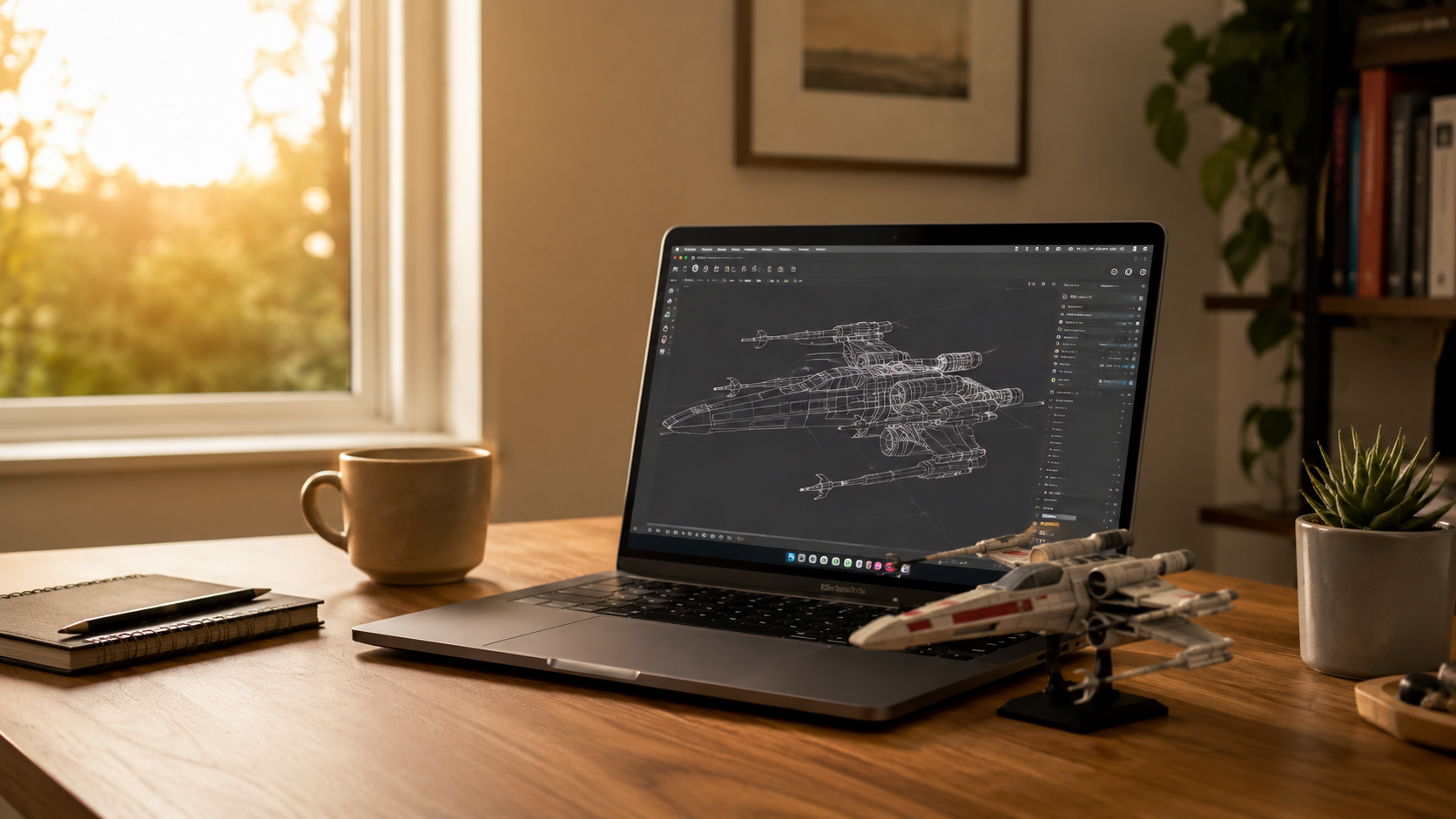
Editorial format-choice image. It illustrates different project types; it is not evidence that every pictured object was exported in all three formats.
First separate the model, the project and the machine file
Many format comparisons become confusing because they mix three different stages. STL, OBJ and core 3MF describe model data. A slicer project may use 3MF as a container for the plate and application-specific data. The printer itself usually receives machine instructions such as G-code, not the editable source model.
|
Stage |
Typical files |
What it answers |
What it does not guarantee |
|
Design or exchange model |
STL, OBJ, 3MF, STEP, native CAD |
What is the shape and appearance? |
That the model is ready for a specific printer |
|
Slicer project |
3MF or a vendor project format |
How is the model arranged and prepared? |
That another slicer understands every setting |
|
Machine instructions |
G-code or vendor-specific output |
What movements, temperatures and extrusion will the machine execute? |
That the file is safe for a different printer profile |
Do not run machine code prepared for another printer unless the hardware profile, dimensions, firmware expectations, temperatures and start/end commands are known to match. Return to the model or project and slice again when in doubt.
STL vs OBJ vs 3MF: side-by-side comparison
|
Capability |
STL |
OBJ |
3MF |
|
Surface geometry |
Triangle mesh |
Polygon mesh; commonly vertices, normals and faces |
Mesh and component structure |
|
Defined units |
No standard unit field |
No dependable standard unit field |
Yes, in core model data |
|
Color/material |
No dependable standard workflow |
Can reference MTL material data |
Can carry supported material/property data |
|
Textures |
No |
Usually linked image files |
Possible when the application supports the relevant data |
|
Multiple named objects |
No named object structure |
Groups and objects are possible |
Objects, components and build items are supported |
|
Slicer settings |
No |
No |
May be stored by a slicer as project or vendor metadata |
|
Single self-contained file |
Yes |
Often no |
Yes as a package |
|
Typical strength |
Maximum compatibility |
Appearance-centric exchange |
Rich project handoff inside a compatible workflow |
|
Main risk |
Wrong scale or lost context |
Missing MTL/textures or ignored appearance |
Partial import, ignored extensions or vendor settings |

Editorial macro image showing surface faceting. Triangle density affects a mesh's curve quality, but the photo does not show a measured export test.
The 3MF Consortium publishes separate core and extension specifications, plus a compatibility matrix that distinguishes import, export and extension support. That distinction matters: a 3MF file can contain data that a receiving application does not implement.
STL: best for broad mesh sharing

Editorial photo of a generic printed bracket. It represents a geometry-only use case and is not a downloadable file or slicer screenshot.
STL represents a surface with triangular facets. Its simplicity explains its reach: model libraries, repair tools and slicers have supported it for decades. A binary STL is compact enough for ordinary models and is usually the safest exchange copy when you do not know the recipient's software.
The Library of Congress STL description identifies the triangular-mesh structure. What STL does not carry is just as important: there is no standard unit field, no texture package, no material assignment and no slicer project data.
Use STL when
- The model is one color or material. The recipient only needs the printable shape.
- Compatibility is more important than context. You are publishing to a model library or sending to unknown software.
- The receiving user will choose settings. Orientation, supports, infill and printer profile should remain their decision.
Check these STL risks
- Scale: Read the imported dimensions. A millimeter-inch mismatch can change size by 25.4 times.
- Mesh quality: Curves need enough triangles to print smoothly, but excessive triangles only enlarge the file.
- Topology: Holes, self-intersections and flipped normals can produce missing or repaired geometry in the slicer.
OBJ: useful when appearance data must travel

Editorial color figurine used to explain surface appearance. It is not proof that a specific slicer preserved the OBJ materials.
OBJ can define geometry, normals, texture coordinates, groups and objects. Appearance commonly depends on a companion MTL file and separate image maps, as documented in the Library of Congress OBJ entry. The result is usually a package of related files, not one durable attachment.
If an OBJ loads as a grey model, first check whether the MTL and texture images arrived, kept their names and remain in the expected relative paths. Then check the importer. The file can be complete while the receiving slicer chooses to ignore its appearance data.
For example, PrusaSlicer currently documents that OBJ material and texture information is ignored on import. That is an implementation rule, not a limitation of every OBJ-capable graphics program.
Use OBJ when
- UV textures are part of the handoff. The receiving graphics, scanning or full-color workflow explicitly supports them.
- You need object groups or normals. Those structures matter more than a minimal STL exchange copy.
- You can send a folder or ZIP. Keep the OBJ, MTL and every texture image together.
3MF: strongest for compatible print-project handoff
3MF is a ZIP-based package with XML model data. Its core specification defines units, mesh objects, components, transforms, build items and metadata. Optional extensions add other manufacturing data. Slicers may also store their own project information inside the package.
That makes 3MF valuable, but not universal. “The format can carry it” is different from “this application writes it, the next application reads it, and both interpret it the same way.” Materials, textures, supports, painted regions, printer profiles and vendor settings can be partially supported or ignored.
|
3MF COMPATIBILITY RULE: Name the originating application and version, then reopen the file in the receiving application before deleting the source project. Check object count, dimensions, orientation, materials, supports and printer profile. A successful import without a warning is not proof that every setting survived. |
Use 3MF when
- You want to resume your own prepared project. The same slicer and version can reopen the arranged plate and supported settings.
- Several objects belong together. Names, transforms and build relationships need to remain in one package.
- The recipient confirms support. Both sides have tested the required 3MF core and extension features.
3MF vs STL: keep both when the setup matters
A practical handoff often includes two files. STL is the broad exchange copy. 3MF is the prepared project copy. The editable CAD or sculpting source remains the master because neither a triangulated STL nor a slicer project replaces design history.
|
Keep |
Purpose |
What to verify |
|
Native CAD or sculpting file |
Future design edits |
Fonts, linked assets, modifiers and parametric history |
|
STL exchange copy |
Maximum slicer access |
Millimeter dimensions and mesh repair result |
|
3MF project copy |
Prepared plate and compatible project data |
Slicer version, printer profile and reopened settings |
|
README or project note |
Human context |
Units, intended size, material, version and known limitations |
Conversion changes the container, not the missing history
Changing the filename extension is not conversion. A real converter reads the source structure and writes a new target structure. Data that did not exist in the source cannot be reconstructed automatically, and data the target cannot represent will be removed or flattened.
|
Conversion |
What usually remains |
What does not magically return |
Before printing |
|
STL to 3MF |
Triangle mesh |
Original units, colors, object names, materials or prior slicer settings |
Assign units and project data deliberately, then reopen |
|
OBJ to STL |
Triangulated surface geometry |
MTL materials, texture maps, groups and appearance |
Check normals, scale and fine surface detail |
|
3MF to STL |
Selected mesh geometry |
Units field, components, colors, materials, supports and project metadata |
Export important objects separately and record size |
|
OBJ to 3MF |
Geometry and only the appearance data both apps support |
Unsupported texture or material semantics |
Compare the receiving preview with the source |
AOSEED file compatibility: what current documentation actually says

AOSEED X-MAKER product-led image. It illustrates the guided app workflow and does not claim direct 3MF support.
CHECKED AUGUST 9, 2026: This table reflects current AOSEED product, app and user-guide pages. Software support can change, so confirm the installed app or X-PRINT version before publishing a permanent compatibility claim.
|
AOSEED workflow |
Documented input |
Documented output or next step |
What to do |
|
Built-in X-MAKER App model or design |
App library/design data |
Guided slicing and printing inside the app |
Use the app workflow; no manual format choice is normally needed |
|
External model in X-MAKER App |
STL |
App preview and print workflow |
Import STL and verify physical dimensions |
|
X-PRINT slicer |
STL / OBJ |
Xcode / G-code listed for printer-ready transfer |
Use the correct AOSEED printer profile |
|
Third-party slicer |
Whatever that slicer supports |
Printer-specific machine file |
Follow AOSEED parameter guidance and reslice for the machine |
|
3MF in AOSEED software |
Not listed in the official pages reviewed |
No verified direct path stated |
Do not promise support; check the current app UI or use a confirmed external slicer |
AOSEED's current X-MAKER application guide names STL import. The X-MAKER product specification lists STL and OBJ as X-PRINT slicing inputs and Xcode/G-code as printable formats. The X-MAKER user guide also says third-party slicers can be used after the relevant parameters are set.
Run this five-step compatibility test
- Duplicate the source. Keep the native design, original download and any MTL or texture files unchanged.
- Import into the receiving app. Use the exact software and version that will prepare the print, not a different viewer.
- Check measurable facts. Compare overall dimensions, object count, orientation and the smallest functional feature.
- Check workflow data. For OBJ, inspect materials and textures. For 3MF, inspect printer profile, supports, modifiers, material assignment and plate layout.
- Reopen and slice. Save, close, reopen, then inspect the layer preview before creating machine code.
Common file problems and the fastest fix

Editorial troubleshooting image. It represents a failed print and should not be used as proof of a specific file-format defect.
|
Symptom |
Likely reason |
First check |
Fix |
|
Model is tiny or huge |
Unit mismatch |
Read imported millimeter dimensions |
Set the intended units or scale by the exact 25.4 conversion |
|
OBJ is plain grey |
Missing MTL/textures or importer ignores them |
Open the MTL and compare filenames |
Restore the folder structure or use a supported appearance workflow |
|
3MF opens but settings differ |
App-specific metadata or unsupported extension |
Compare slicer name/version and printer profile |
Recreate unsupported settings and save a new project copy |
|
Parts merge into one object |
Format conversion flattened structure |
Check the source object list |
Return to the source and export objects separately |
|
Holes or faces disappear |
Non-manifold mesh or flipped normals |
Review repair warnings and layer preview |
Repair the source mesh, then export again |
|
Renamed file will not open |
Extension changed without conversion |
Inspect the real file type |
Open in a compatible source app and use Export/Save As |
Can a JPEG become an STL?
A JPEG stores color pixels, not depth, so one image cannot reveal the hidden sides of an object. Most one-image tools create a raised relief, lithophane or traced silhouette rather than a complete scan. For a practical workflow, use AOSEED's guide to turn a drawing into a printable 3D model and keep bold shapes, clear outlines and printable thickness.
Which format wins for your project?

AOSEED product-led image with printed objects. Confirm the current app and slicer compatibility before adding format badges or UI claims.
- Choose STL for a one-piece model, public download or unknown receiving software.
- Choose OBJ when textures, UVs or appearance data matter and the receiving tool explicitly supports the complete OBJ package.
- Choose 3MF for an arranged print project or multi-object handoff after both applications have been tested for the required data.
- Keep the native source whenever the design may change; a print mesh is not an editable master.
- For AOSEED use the guided app for built-in projects, STL for documented app import, and STL/OBJ for the documented X-PRINT path.
If the format decision is part of choosing a family printer, compare the current software workflow, build volume and material support across AOSEED 3D printers for kids. Format support is only useful when the full design-to-print path is clear.
FAQs
Is 3MF better than STL for 3D printing?
3MF is better when you need defined units, multiple objects or a saved print project and both applications support the required data. STL is better when broad compatibility and a simple geometry-only handoff matter most.
Many users keep both: a 3MF project for the prepared plate and an STL copy for exchange. Keep the native design source as the editable master.
Can every 3D printer use 3MF files?
No. The printer usually runs machine instructions generated by a slicer, while the slicer decides whether and how it imports 3MF. Support for core 3MF, extensions and vendor project metadata differs by application.
Check the slicer's current import documentation, then reopen the project and inspect the printer profile, objects, materials and supports before generating machine code.
Does OBJ include colors and textures?
OBJ can reference color and texture information, commonly through an MTL file and separate image maps. Those companion files must travel with the OBJ, and the receiving application must support them.
- If the model is grey, check whether the MTL and images are present and named correctly.
- If the files are present, check the importer's documentation; some slicers ignore OBJ appearance data.
Does converting STL to 3MF restore units or print settings?
No. Converting STL to 3MF places the existing triangle mesh in a new container. It cannot recover units, colors, materials, object names or slicer settings that were never stored in the STL.
Assign the intended units and project settings manually, save the new 3MF, close it and reopen it before relying on the result.
Which 3D file should a beginner download?
Choose STL for one ordinary model unless the creator or your slicer recommends a specific 3MF project. STL is widely supported, but always verify dimensions and inspect the layer preview.
Choose 3MF when the download intentionally includes several arranged parts or a tested project setup and your slicer is named as compatible.
Can AOSEED open STL, OBJ or 3MF files?
As of August 9, 2026, AOSEED's official X-MAKER App guide documents STL import, and the X-MAKER product specification lists STL and OBJ as X-PRINT slicing inputs. Those sources list Xcode/G-code as printer-ready formats.
The reviewed AOSEED pages do not list direct 3MF input. Do not assume it is supported in AOSEED software unless the current installed version explicitly offers it; a confirmed third-party slicer may still use 3MF before exporting the correct machine file.
Sources
- 3MF Consortium, “Specifications”
- 3MF Consortium, “Compatibility Matrix”
- Library of Congress, “STL File Format Family”
- Library of Congress, “Wavefront OBJ File Format”
- Library of Congress, “Wavefront Material Template Library File Format”
- Prusa Research, “Supported File Formats”
- AOSEED, “X-MAKER Applications”
- AOSEED, “X-MAKER 3D Printer Product Specifications”
- AOSEED, “X-MAKER User Guide”








Further reading

Thanksgiving STEM Activities for Kids: Table Projects and Simple Engineering Challenges

Halloween STEM Activities for Kids: Spooky Builds That Teach Real Science

STEM Crafts for Kids: Build, Decorate and Test