3D Printing for Libraries: 18 Program Ideas With One Printer
One 3D printer can support a credible library program if the service is designed around printer hours rather than unlimited patron demand. The workable model is a published queue, short job limits, staff review and slicing, repeatable group activities, clear pickup rules, and permission to reject unsafe, unlawful, oversized, or unprintable files. Without those boundaries, one long personal job can consume the capacity intended for a week of programs.
The best first program is not open submission for everyone. Start with a monthly group build using pretested files, separate design time from machine time, and batch identical or small parts where possible. Staff learn the workflow, patrons receive a finished experience, and the library gets real data on print hours, failure rates, staff handling time, repeat attendance, and demand.
This guide provides 18 program ideas across skill building, play, repair, community, and academic use, plus queue policy, pricing, file review, software, staff training, hardware criteria, and capacity planning. Use the quick-pick table to match a program to the available printer load, then add complexity only after the monthly routine is stable.
Quick Pick: Match the Program to Your Printer Load
Five program shapes cover almost everything a one-printer library can offer. Timing is the difference. When does the machine actually run?
|
Program shape |
Printer load during session |
Best for |
Prep needed |
|
Design-only workshop |
None |
Adults, teens, absolute beginners |
One trained staff member |
|
Preprinted activity |
None |
Kids, clubs, painting groups |
A print run the week before |
|
Team prototype build |
One print per group |
Youth STEM, teen invention club |
Two to four hours of queue time |
|
Patron submission service |
Continuous, staff-managed |
The whole community |
Written rules plus an upload form |
|
Course or repair project |
Long jobs, booked ahead |
Academic and adult programs |
Reserved machine time |
Why One Printer Is Enough to Start

A single machine lets you test demand before expanding. You can see which programs fill, how long the queue becomes, and how much staff time and filament the service uses while policies are still easy to revise.
Start With Programs You Can Repeat Monthly
Pick activities that run again without a rebuild. A beginner design class, a keychain session or a puzzle night can take a new group every month on the same lesson plan. Staff stop reinventing the event. They help patrons instead. That shift matters more than the topic.
Run Group Builds Instead of One Print Per Person
Not everyone needs an object in hand by 8pm. A group can design one prototype together, study a preprinted model, or vote on the design the library prints afterwards. The bottleneck disappears. Attention moves to designing and testing, which is the part with learning in it.
Split Design Time From Print Time
CAD work and printing do not belong in the same hour. Patrons design during the session, submit at the end, and collect later. Prints outlast the event. Staff also get a window to open each file before the machine starts, which prevents the slow failures.
|
TIP: SLICE BEFORE YOU SCHEDULE Before you advertise a program, slice the sample model and look at the estimate. If one small object takes three hours, twenty attendees will not each get one. Shrink the object, drop the infill, or switch to a team print. Five minutes in the slicer saves the whole event. |
18 Library 3D Printing Program Ideas

These work on one machine because print jobs stay small. Most use preprinted parts. Difficulty climbs as the list goes on.
Skill-Building Programs

- Beginner design workshop. Teach moving, resizing, grouping and exporting in a browser tool. Everyone leaves with a printable file, and staff print a selection later.
- Design your own keychain. Small, fast and easy to personalise with initials or a simple shape. Set a maximum size before the session starts.
- Personalised bookmark session. Connects digital fabrication to a familiar library object. Keep the walls thin enough to print quickly and thick enough to survive a bag.
- Intro to CAD for adults, as a short series. Session one covers shapes and dimensions. Later sessions add holes, text, alignment and a working part.
- Geometry model set for homework help. Print cubes, prisms, pyramids, cones and spheres once. That single set serves students for years with no new print jobs.
Play and Hobby Programs

- Tabletop miniature painting club. The library preprints the figures, and the event is about paint. The machine stays free while the room is full.
- Print-and-play puzzle challenge. Solve preprinted puzzles in teams, then design one. Winning designs enter the queue afterwards.
- Gaming night accessories. Dice towers, tokens, storage trays and terrain pull in groups who would never attend a technology talk. Set limits early, because hobby demand grows fast.
- Archaeology dig activity. Bury printed replica bones or artifacts in a sand tray and hand out reference cards. Children uncover, identify and argue about them.
- Local landmark modeling. Pick a recognisable bridge, monument or building. Simplified models become a local history display.
Practical and Repair Programs

- Replacement parts clinic. Patrons bring broken knobs, clips, caps, brackets and spacers. The session teaches measuring, and staff help decide whether printed plastic is the right answer.
- Repair cafe add-on. Bolt 3D printing onto an existing repair event. Say clearly in the listing that some fixes need a second visit.
- Self-watering planter build. One object teaches wall thickness, drainage, water storage and fit between parts. Good for school groups.
- Assistive and accessibility aids. Grip aids, label holders, jar openers, cable organisers. Start with the person and the task, not the model file.
Community and Academic Programs

- Monthly patron print submission service. One approved file per person per month, reviewed and printed by staff. Requests spread across the calendar instead of arriving at once.
- Teen prototype and invention club. Multi-week problems instead of one-night crafts. Require one test and one revision, so iteration is the point.
- Course-linked prototype printing. Engineering, design, architecture and art students submit coursework models. Ask faculty for assignment deadlines early.
- Community design challenge. Invite patrons to solve one small problem for the library: signage, a display stand, a cable tidy. Print the strongest idea and show the process.
|
NOTE: EIGHT OF THESE NEED NO LIVE PRINTING Programs 5, 6, 7, 9, 12 and 13 can run entirely on parts printed the week before, and programs 1 and 4 need no printing at all during the session. If your machine is already busy, start there. |
Set Print Limits Before Demand Grows

Limits are easy to introduce and hard to retrofit. Publish the maximum size, the maximum job length, the monthly cap and the accepted file types on day one. Do it before launch. Two real services show how differently the same rules can land.
|
Limit |
Public library model |
Academic library model |
What to copy |
|
Who may submit |
Cardholders aged 18 or over, minors through a parent |
Students, staff and faculty via an order form |
Decide first, then print it next to the form |
|
File format |
STL only, 25 MB maximum |
STL or 3MF |
Name two formats, not six |
|
Job length |
Four hours per job |
Quoted per job, three business days to complete |
Cap by hours, not by size alone |
|
Frequency |
Two prints per person per week |
No stated cap, every job paid |
Cap free use, leave paid use open |
|
Cost |
$0.10 per gram of filament |
$0.15 per gram with a $3.00 minimum |
Publish the rate before upload |
|
Who runs the machine |
Staff only |
Staff only |
Keep slicing and setup in-house |
Those figures are published by the Mansfield / Richland County Public Library and the University of Florida Marston Makerspace. Both keep every physical interaction with the printer in staff hands, which is the single rule that protects the queue.
|
WARNING: THE POLICY IS NOT OPTIONAL The American Library Association expects any library offering 3D printing to adopt a written policy that identifies who is eligible, sets out access rules, fees and training requirements, bars use for illegal activity, and states that existing library policies on behaviour, copyright and privacy still apply. Public services also commonly refuse anything unsafe, anything inappropriate for the building, and anything that infringes someone else’s intellectual property. Write that down before the first dispute, not after. |
Build a Submission Service Staff Can Actually Run
A submission service gives patrons access without putting them in front of the machine. Staff keep file review, slicing, setup and approval. The trade is simple. More work per job, far less troubleshooting.
Decide Who Can Submit, and Say So on the Form
Cardholders only, or residents, or registered makerspace users after training. Any of those work. Pick one. What breaks trust is letting someone upload a file, then discovering a requirement they were never shown.
Accept Two File Formats, Not Six
STL covers most requests. 3MF handles projects that carry their own print settings. Publish both next to the upload form. Converting unusual formats is a service, so only offer it if you mean to staff it.
Review Every File Before It Reaches the Plate
Five minutes with the model prevents hours of wasted filament. Use the same list every time. Every time.
- Scale and orientation. Does it sit flat, and is it the size the patron expected?
- Estimated duration against your job cap.
- Thin walls, tiny text and unsupported overhangs.
- Support requirements and how hard removal will be.
- Broken geometry, holes in the mesh, duplicate shells.
- Policy check: is this something the library will print at all?
Set One Pickup Point and One Deadline
Email creates a record of completion, so use it. Label each finished print with a name or request number. Add a collection deadline if storage is tight. State what happens to uncollected prints, because it will happen. One public service transfers ownership to the library after 14 days.
Free, Paid, or Both: Pricing a One-Printer Service
Free access removes the barrier for beginners. The library still buys filament. It still replaces nozzles. A simple pricing rule balances the two without a spreadsheet.
|
Fee model |
How it works |
Where it breaks |
Best fit |
|
Free monthly allowance |
One small project per person per month, or a fixed filament allowance |
Heavy users treat it as free manufacturing |
Public libraries opening a new service |
|
Charge per gram |
The slicer estimates weight, the fee follows the material |
Tiny jobs cost more to process than they earn |
Steady demand, mixed job sizes |
|
Flat project fee |
One price for small prints, another for large approved jobs |
Two jobs in one band can use very different amounts of filament |
Libraries that need simple front-desk pricing |
|
Free workshops, paid personal prints |
Educational programs stay free, unrelated requests carry a material charge |
Needs a clear definition of educational |
Libraries with a strong program calendar |
Per-gram pricing is easier to explain when you show the objects. One library publishes its own examples at ten cents per gram. Twenty cents for a 2 gram trinket. $2.50 for a 25 gram toy. $9.90 for a 99 gram bracket. Patrons stop guessing. So does the budget.
|
TIP: DECIDE WHO PAYS FOR FAILURES NOW If the machine fails, most libraries absorb the cost. If a patron submits a model after being warned it would fail, the rule can differ. Write both cases into the policy so staff are not inventing a decision at the desk on a Saturday. |
Software, Models and Where Projects Come From
Patrons need two things. A way to make a file, and a starting point that is not a blank screen. Staff need a slicer they trust. Keep those separate.
Start Beginners in a Browser
A browser tool removes installation from the first lesson. Tinkercad is free, works on library machines, and builds objects from simple shapes, which suits keychains, signs, name tags and beginner challenges. Move patrons to parametric or sculptural tools only when a project demands it. Most never need to.
Keep Slicing With Staff
The slicer decides layer height, infill, supports and speed. It also produces the time and material estimate your fee rests on. That stays in-house. Independent makerspace users can earn more control after training, tied to demonstrated skill rather than enthusiasm.
Give Patrons a Tested Starter Folder
Keep a small set of files you have printed successfully: keychains, bookmarks, simple puzzles, geometry shapes, name tags. Known files mean fewer surprises. New patrons succeed on the first try, and that is what brings them back.
Teach Licence Checks Before Printing
A free download is not a free licence. Some creators allow personal use, then restrict commercial use, modification or redistribution. Show patrons where the licence lives on public model repositories. It matters most for programs that plan to sell, gift or remix a design.
Train Staff and Pick Hardware That Survives Public Use
Nobody needs an engineering degree to run this. Staff need to load filament, start and stop a job, remove a print, spot a failing first layer, and explain the rules without hedging. That is the whole list. The Public Library Association keeps a working set of makerspace start-up and staff training resources. The pattern in all of them is the same. Train the team before you train the public, and train more than one person. One trained employee is a service that closes when they take leave.
|
WARNING: VENTILATION AND HOT SURFACES Desktop printers release ultrafine particles and volatile organic compounds while they run, and hot ends, heated beds and moving parts cause the physical injuries. NIOSH guidance written for makerspaces, schools and libraries recommends placing the machine in a well ventilated space, favouring lower-emitting materials, following the manufacturer instructions, keeping the printer clean, and considering a unit with built-in filtration. In a public room, an enclosure also keeps fingers away from the nozzle. Treat that as a purchase requirement, not a bonus. |
What to Check Before You Buy
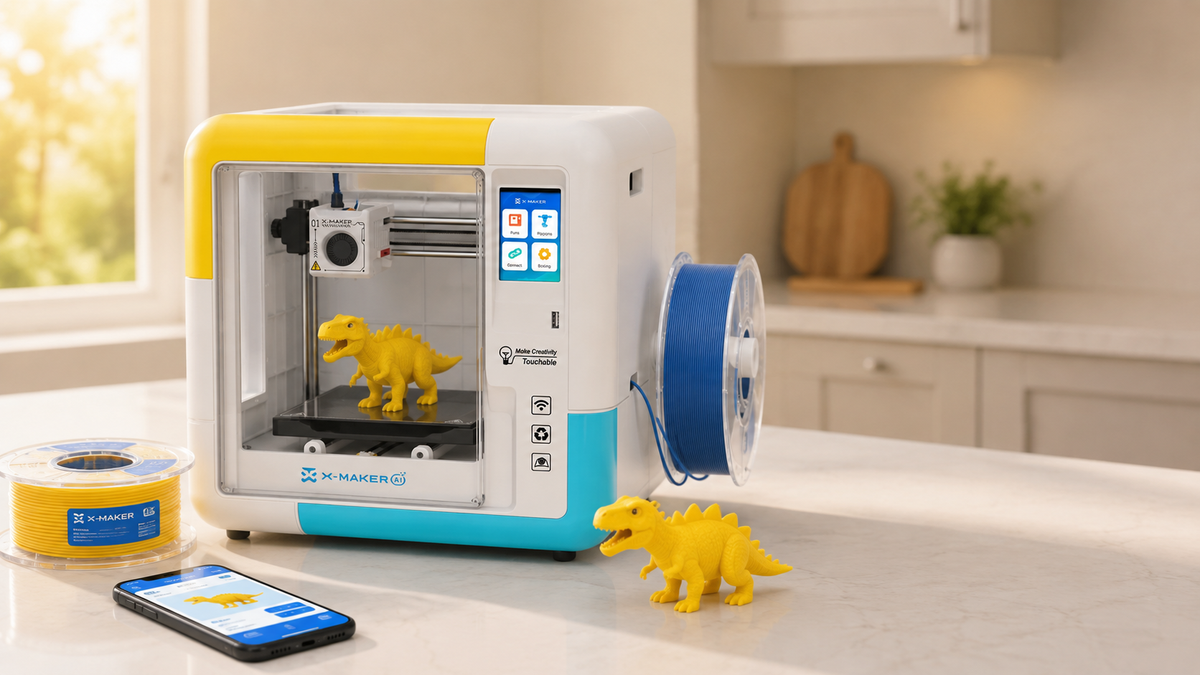
Public rooms punish fragile hardware. A machine sitting in a teen space or a children’s area needs four things: an enclosure, low noise, a bed that levels itself, and a workflow a volunteer can follow. If your programs lean toward youth and beginner sessions, an enclosed printer built for shared spaces is worth comparing against a hobbyist kit. The failure modes differ. Kits reward tinkering. Library service rewards prints that finish unattended.
|
What to check |
Why it matters in a public room |
X-MAKER, live specification |
|
Enclosure |
Keeps hands off the nozzle and holds heat steady |
Fully enclosed build area |
|
Noise |
The machine sits near people reading |
Under 50 dB in operation |
|
Build volume |
Sets your maximum object size policy |
150 x 150 x 150 mm |
|
Materials |
PLA for programs, ABS for functional parts |
PLA and ABS, heated bed to 110 C |
|
First-layer reliability |
Failed first layers waste staff time |
16-point automatic bed levelling |
|
Detail and speed |
Fine models and short queue times |
Down to 0.05 mm, up to 300 mm/s |
|
Submission routes |
Staff need offline options |
Wi-Fi, USB and SD card |
|
Filament safety testing |
Answers the first question a parent asks |
PLA tested to EN 71-3, ISO 10993, ISO 16000 |
|
AOSEED MAKES ENCLOSED, QUIET 3D PRINTERS BUILT FOR ROOMS FULL OF BEGINNERS Every model in the kid-friendly 3D printers range ships with an enclosed build area, one-touch printing, a library of 8,000 or more reviewed models and guided design apps, so your next program is planned before the last one finishes. That is the part libraries underestimate: the printer is easy to buy, and the project pipeline is what keeps it busy. |
Measure the Program, Then Talk About Capacity

Track a short list every month. One page is enough. After three months the patterns do the arguing for you.
- Approved submissions and rejected requests, counted separately.
- Workshop registrations, actual attendance and waitlist length.
- Printer hours run against hours available.
- Days between file approval and patron pickup.
- Failed prints, split into machine faults and file faults.
- Filament spend, split between programs and personal requests.
- Repeat patrons, which shows whether skills are building.
- How often someone is turned away or asked to wait longer than you would like.
Rejected requests are the most useful number there. A rising count usually means the rules are unclear, not that patrons are unreasonable. Fix the wording first.
When to Add a Second Printer, and When to Wait
Expansion should fix a documented problem. Use the numbers. They are why you collected them.
Add a Second Machine When
- Normal patron jobs have waited weeks, across several months, not one busy fortnight.
- Program preparation keeps forcing you to pause personal submissions.
- Long academic or community jobs regularly block small requests.
- One maintenance issue stops every workshop and every request at once.
- A second program genuinely needs a capability the first machine lacks.
Hold at One Machine When
- The queue is full because job limits are too generous, not because demand is high.
- Utilisation is low and the real gap is promotion.
- Attendance is strong but almost every program could run on preprinted parts.
- Only one staff member is trained, so a second printer doubles a single point of failure.
- You cannot yet show print hours, waiting times and failure rates on one page.
Conclusion
One printer can support a useful library program when demand is controlled by clear submission rules, print limits, staff review, and repeatable activities.
Track queue time, material use, failed jobs, patron outcomes, and staff workload before deciding whether to expand.
FAQs
What Are Good 3D Printing Programs for a Library?
Choose programs that fit the printer's weekly capacity and can be repeated with the same staff workflow.
- Short design workshops with a shared group print
- Monthly beginner projects using staff-tested files
- Repair and replacement-part clinics
- Accessibility and adaptive-tool design sessions
- Local history, maps, and museum-object activities
- Teen maker clubs and curriculum support sessions
How Can 3D Printing Be Used in an Academic Library?
- Course prototypes and capstone-project iterations
- Geometry, molecule, anatomy, terrain, and data models
- Faculty demonstrations and research communication
- Assistive technology and accessible learning objects
- Consultations on slicing, file repair, and design-for-printing
Where Can Patrons Find 3D Printer Projects?
Start with a staff-tested starter folder, then use reputable public model repositories and patron-created files. If a model comes from outside the library, staff should check the licence, open it in a slicer, review scale and print time, and reject unsafe or unprintable geometry before it enters the queue.
How Much Does 3D Printing Software Cost?
It ranges from free browser tools and open-source slicers to paid CAD and fleet-management platforms. If the library serves beginners, begin with software that runs on existing computers and exports a standard format. Pay only when a specific need, such as account management, advanced CAD, or queue control, justifies the licence and privacy review.
How Much Does It Cost to Run a Library 3D Printer for One Hour?
There is no universal hourly rate. Calculate the cost from the sliced job and local operating costs.
- Filament used, including support and purge waste
- Electricity at the library's local rate
- Failed jobs and staff review time
- Nozzles, build surfaces, maintenance, and other wear items
What Should a Library Refuse to 3D Print?
The policy should be written before the first public submission and reviewed by the library's responsible authority.
- If a design is prohibited by law or local policy, reject it.
- If it creates a credible safety risk, seek the library's designated review rather than improvising at the desk.
- If the requester cannot show permission for protected intellectual property, apply the library's copyright policy.
- If the file exceeds print-time, material, size, or content limits, explain the limit and offer a compliant revision when possible.
Sources
- National Institute for Occupational Safety and Health, “Approaches to Safe 3D Printing: A Guide for Makerspace Users, Schools, Libraries, and Small Businesses”
- American Library Association, “3-D Printing in Libraries: Policies and Best Practices”
- Public Library Association, “Makerspaces”
- University of Florida George A. Smathers Libraries, “Marston Makerspace 3D Printing”
- Mansfield / Richland County Public Library, “3D Printing”
- Autodesk, “Tinkercad”



Further reading

Space Gifts for Kids: Rockets, Planets and Models to Build
Useful Gifts for Kids They Will Actually Use, Including Things They Can Print

Engineering Gifts for Kids: Toys and Kits That Teach How Things Work