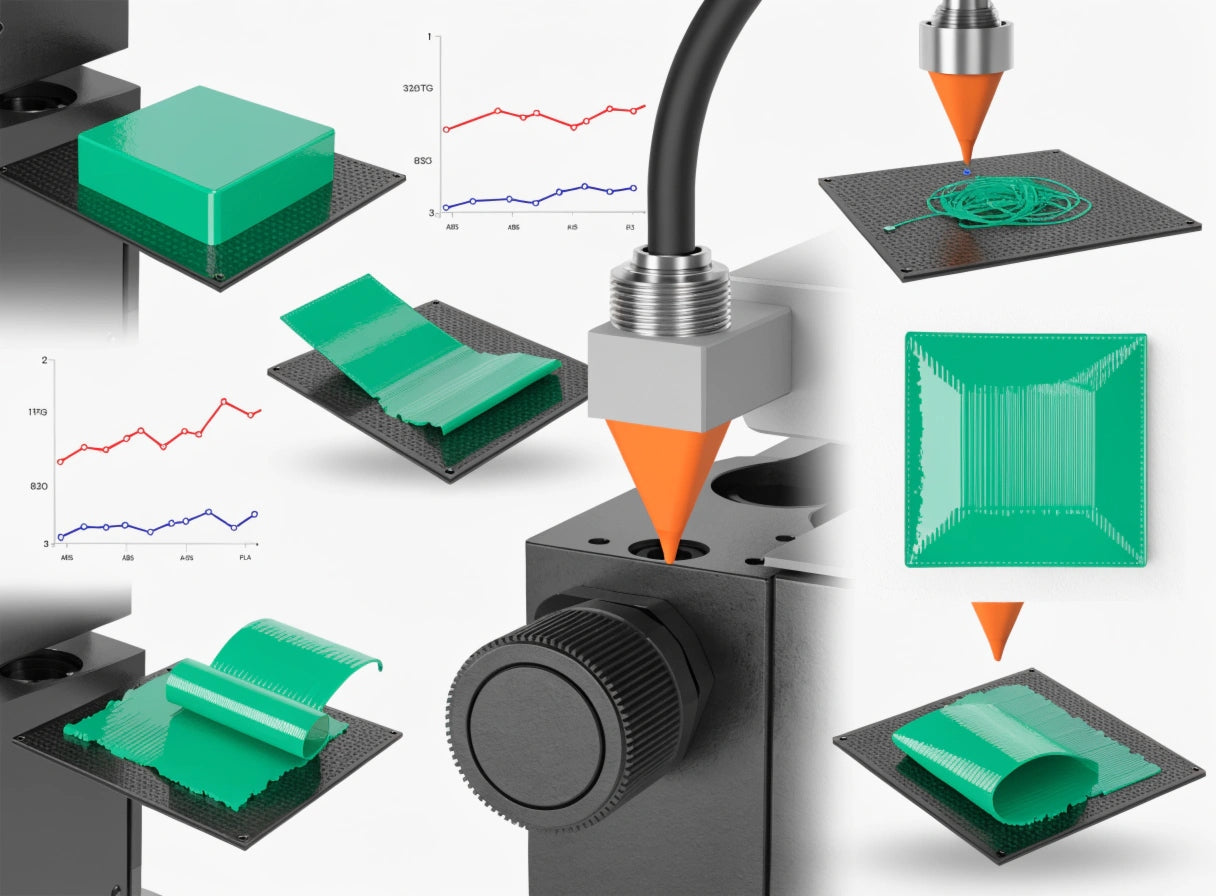
Why Your 3D Print Won't Stick: Easy Fixes for Beginners

The most common 3D printing failure is also the easiest to prevent. A print that does not stick to the build plate is almost always caused by one of four things: the bed is not level, the nozzle is not at the right height, the surface is not clean, or the temperature is off. None of these take more than 5 minutes to fix.
This guide walks through the most common causes of poor bed adhesion in plain language — what causes it, how to recognize which problem you have, and exactly what to do. It is written for parents and beginners, not for engineers.
If you are using an AOSEED X-MAKER JOY, the fully enclosed design and pre-leveled factory calibration eliminate most of the common adhesion variables described here — the magnetic build plate, app-managed temperatures, and enclosed chamber all work together to make the first layer stick reliably across sessions. If a session fails despite this, the six fixes below will resolve it.
|
90%+ Of adhesion failures fixed by 3 steps: clean, level, Z-offset |
5 min To diagnose and fix most first-layer issues |
PLA Easiest material — lowest thermal shrinkage of common options |
0.05mm The increment for Z-offset adjustments — small but critical |
Diagnose Your Failure First — What Does It Look Like?
|
🔴 Corners lifting or curling |
🟡 First lines don't adhere |
🟣 Whole print detaches mid-way |
|
Thermal shrinkage — the plastic cools faster than the bed holds it. Increase bed temperature by 5°C. Turn off the cooling fan for the first 3 layers. |
Z-offset too high — nozzle is not close enough to produce the 'squish' that bonds the first layer. Reduce Z-offset by 0.05mm increments until lines flatten. |
Advanced warping — the above problem progressed past the first layer. Start with corners: check bed level, increase bed temp, add a Brim in slicer settings. |
Key Causes of 3D Prints Not Sticking

BCN3D's guide to 6 solutions for 3D prints not sticking to the bed identifies bed leveling and nozzle distance as the two most reliable first diagnostic points — before any material or temperature adjustments are made. If the physical setup is correct, most adhesion issues resolve without any settings changes at all.
Bed Leveling Issues
An uneven build plate means the nozzle is at different heights in different parts of the bed. In the area where the nozzle is too far from the surface, the filament lands without the squish needed to bond. In the area where it is too close, the nozzle can drag through the filament and block extrusion.
How to check: slide a standard sheet of paper between the nozzle and the bed at each corner and the center. You should feel a slight, consistent drag at every point. If one corner is looser or tighter than the others, that corner needs adjustment. Modern printers — including the X-MAKER JOY — use factory pre-leveling and auto-calibration to eliminate this as a daily task.
Incorrect Nozzle Height
The Z-offset is the vertical distance between the nozzle and the build plate at the start of a print. A Z-offset that is too high produces a first layer that does not stick — the filament drops onto the surface without the pressure needed for a mechanical bond. The fix is to reduce the Z-offset in 0.05mm increments while printing a test square until the lines are visibly flattened and pressed together.
|
🔧 The Squish Test A correct first layer looks slightly flattened and pressed together — not round and bead-like, not transparent from over-compression. If the lines are round, the nozzle is too far. If the layer is transparent and bleeds outward, the nozzle is too close. The target is slightly squished, smooth, and consistent across the whole surface. |
Print Speed for the First Layer
If the printer moves too quickly during the first layer, the filament does not have enough time in contact with the surface to form a thermal bond. The nozzle moves on before the plastic has gripped. Standard recommendation: set the first layer speed to 20–30 mm/s or 50% of normal speed in slicer settings. Once the first two layers are down, normal speed can resume.
Temperature Settings
Temperature Reference Table — Bed and Nozzle by Material
|
Material |
Bed Temp |
Nozzle Temp |
Fan for Layer 1 |
Difficulty |
|
PLA |
60–70°C |
190–210°C |
Off or 10% |
Beginner — easiest adhesion. Best starting point. |
|
PETG |
70–80°C |
220–250°C |
Off for layers 1–3 |
Intermediate — bonds strongly. Use IPA cleaning + slight Z-offset increase. |
|
ABS |
100–110°C |
220–250°C |
Off — for entire print |
Advanced — use an enclosure. High shrinkage. Not recommended for first prints. |
Temperature is the second most common diagnostic variable after Z-offset. A bed that is too cold allows the plastic to cool and shrink before it has bonded to the surface. A nozzle that is too cold produces filament that does not flow freely enough to press into the surface. For PLA, the most common first-session failure is a cold bed — warming it to 60–65°C resolves most cases within the first test print.
Easy Fixes to Ensure Better Adhesion

Snapmaker's analysis of ways to fix 3D print not sticking to the bed confirms that more than 90% of adhesion failures are resolved by the first three actions: clean the bed, level the bed, and check the Z-offset. The fixes below follow that priority order.
|
1 |
Clean the Build Plate |
|
Why it happens: Oils from fingertips leave a microscopic film on the build surface. This film acts as a lubricant between the filament and the bed — preventing the plastic from bonding at a molecular level. Even a brief touch of a clean-looking plate is enough to cause a failed first layer. What to do: Wipe the plate with a lint-free cloth and 70% or higher Isopropyl Alcohol (IPA) before every session. Allow the IPA to fully evaporate before printing. For a deep reset after buildup, remove the plate and wash with warm water and grease-cutting dish soap, then dry fully. Expected result: The most common cause of a sudden adhesion failure on a printer that was working perfectly before. If a session fails without any settings change, clean the bed first. |
|
2 |
Re-Level the Print Bed |
|
Why it happens: A bed that shifts between sessions produces a different Z-offset at different positions across the surface. One corner may stick well while another lifts cleanly off the plate. What to do: Run the auto-leveling routine from the app or settings menu. For printers with manual leveling, perform the paper test at all four corners and the center before starting a new session after transport or any movement of the printer. Expected result: Consistent first layer adhesion across the full build area. No more one-corner-lifts-but-the-rest-stays-down failures. |
|
3 |
Adjust the Z-Offset |
|
Why it happens: A Z-offset that is even 0.1mm too high produces round filament beads that do not bond to the surface. This is the most precise adjustment in the first-layer sequence. What to do: Print a large single-layer test square. While printing, adjust the Z-offset in 0.05mm decrements until the lines are flat, pressed together, and no gaps are visible between adjacent lines. Never adjust by more than 0.1mm at a time. Save the new value once the layer looks correct. Expected result: Flat, consistently bonded first layer lines. Print stays on the plate for the full duration regardless of session length. |
|
4 |
Apply Adhesive to the Build Plate |
|
Why it happens: Some prints or materials need additional mechanical grip beyond what a clean surface provides. This is especially true for small-base models, ABS, and PETG on glass surfaces. What to do: Apply a thin, even layer of a PVA glue stick to the build plate before the print. Apply to a cool or room-temperature plate. Hairspray works as an alternative — hold it 20cm from the surface and apply a light coat. Specialized products like Magigoo are the most reliable option for consistent results across many sessions. Expected result: Improved first-layer grip across the full contact area. Also acts as a release agent for PETG, which can otherwise bond permanently to smooth glass. |
|
5 |
Slow Down the First Layer |
|
Why it happens: High first-layer speeds mean the filament spends less time in contact with the heated surface, reducing the thermal bond that forms during deposition. What to do: In your slicer settings, find Initial Layer Speed or First Layer Speed. Set to 20–30 mm/s, or 50% of your normal print speed. The X-MAKER app manages this automatically for all models in the Toy Library. Expected result: Longer contact time between plastic and heated surface produces a stronger adhesion bond. Particularly effective for PETG and for large flat-base models. |
First Layer Settings Reference

|
⚡ First Layer Speed |
📐 First Layer Height |
📏 First Layer Line Width |
|
Target: 20–30 mm/s Slow enough for the filament to bond before the nozzle moves away. Most slicers allow a % of normal speed — 50% is a reliable starting point. |
Target: 0.2–0.3mm Slightly thicker than the rest of the print. A thicker first layer is more forgiving of small bed leveling errors and provides better thermal contact. |
Target: 120% of nozzle diameter For a 0.4mm nozzle, set to 0.48mm. A wider line means more plastic in contact with the surface, producing a stronger mechanical bond. |
Using Rafts and Brims
Brim vs Raft — Which One and When?
|
Brim — recommended default |
Raft — last resort only |
|
|
What it is |
Single-layer border added around the print's base — like a hat brim |
Thick flat platform printed under the entire model before it starts |
|
Surface area |
Increases contact area without touching the model bottom |
Covers the entire print base — maximum contact surface |
|
Material use |
Minimal — a few extra grams |
Significant — adds 10–20% extra print time and material |
|
Bottom finish |
Clean — does not affect the model's bottom surface |
Rough — raft leaves a textured mark on the model's base |
|
When to use |
Default for any print with small base area or corner lifting risk |
When surface is damaged, badly uneven, or base contact point is tiny |
|
Remove method |
Snap off cleanly by hand after cool-down |
Peel off — may need light sanding to smooth the base |
The brim is the right default for most adhesion challenges. It adds surface area to the print's contact footprint without changing the print's bottom surface finish. Enable it in your slicer by setting the brim width to 5–8mm. For the vast majority of first-session failures with small-base models, adding a 5mm brim resolves the issue entirely.
Materials and Tools to Improve Bed Adhesion

Choosing the Right Material — Adhesion by Filament Type
PLA is the right starting material for every first session and most sessions after that. It has the lowest thermal shrinkage of any common filament — meaning it does not pull away from the surface as it cools. PETG is the right next step for prints that need more durability. ABS is the hardest material for bed adhesion and is not recommended for family use or early sessions.
Quick material selector for parents:
- First session: PLA. Always. Non-toxic, lowest adhesion difficulty, correct at the factory default settings.
- Active toys and race cars: PETG after session 10. Stronger, slightly more flexible, more durable under repeated play.
- Avoid ABS for all family sessions: high shrinkage, requires enclosure, high bed temperature, not suitable for children's home use.
Bed Surface Options
Build Surface Comparison
|
🟫 Glass Bed |
🔷 PEI Sheet |
🧲 Magnetic Flex Plate |
|
Very flat. Excellent surface for PLA. Needs cleaning with IPA before every session. |
Grips when hot. Releases when cool. No glue needed. Long-lasting. |
Flexible. Print removal is easy — flex the plate. Suitable for PLA and PETG. |
|
Best adhesion WITH a thin glue stick layer (PVA or hairspray) |
The most reliable surface for families. Works with PLA across all sessions. |
Check manufacturer heat tolerance — some flex plates do not suit high-temp printing. |
|
Clean with warm soapy water for a deep reset after buildup. |
Clean with IPA only. Avoid dish soap — it leaves a film. |
Clean with IPA between sessions. Inspect for damage after every 20 prints. |
The AOSEED X-MAKER JOY uses a magnetic flex build plate — a format that produces reliable PLA adhesion at the recommended bed temperature without additional adhesives in most sessions, and releases prints with a simple flex once cooled. The magnetic attachment means the plate is fully removable for IPA cleaning between sessions.
Troubleshooting Common Bed Adhesion Issues

Warping and Curling
Warping is the result of thermal contraction. As the plastic cools from the outside in, the edges contract faster than the center, pulling the corners upward off the build plate. For PLA: increase the bed temperature by 5°C and disable the part cooling fan for the first three layers. For PETG: use the same approach with the bed at 75–80°C. For ABS: without an enclosure, warping is nearly impossible to prevent — this is why ABS is not a family session material.
|
⚠️ Draft Prevention — Underrated Fix A cold draft across the printer during the first 5 minutes of printing is the most commonly missed cause of corner lifting in sessions that were otherwise correctly calibrated. Move the printer away from air conditioning vents, fans, and open windows. Even a gentle airflow can cool the first layer fast enough to cause shrinkage before the subsequent layers arrive to hold it flat. |
Uneven First Layers
If one side of the first layer looks flat and well-bonded while another side looks loose and stringy, the bed is not level. One corner is further from the nozzle than the others. Re-run the leveling sequence before the next session. If auto-leveling is available, use it. If leveling manually, perform the paper test at all four corners and the center without skipping the center check — a bed that is level at the corners can still be bowed in the middle.
Uneven first layer — quick diagnosis checklist:
- One corner sticks but opposite corner lifts → bed is tilted. Level again, checking the diagonal.
- Center of print looks loose but edges stick → bed is bowed upward in the center. Adjust Z-offset slightly lower.
- Edges stick but a wide strip in the middle does not → bed is bowed downward in the center. Check bed support and warping.
- Everything looks correct but one spot consistently fails → clean that spot specifically with IPA and check for residue.
Print Failures Halfway Through
A print that starts well but fails after 30 to 60 minutes is almost always a warping failure rather than an initial adhesion failure — the corners lifted gradually while the print was running. The other common mid-session failure is a filament jam: the extruder stops pushing material, the nozzle moves but nothing comes out, and the print becomes a partial outline of its own shape.
|
Mid-Print Failure Type |
Most Likely Cause |
Immediate Fix |
|
Corners lifting at height |
Warping from thermal contraction — bed cooled or draft introduced |
Increase bed temp, add Brim on retry, remove drafts from print environment |
|
Print moves or shifts |
Print base detached — first layer adhesion insufficient for build weight |
Re-clean bed, add adhesive, reduce first layer speed on retry |
|
Nothing comes out after layer 10 |
Filament jam in extruder or nozzle |
Pause print. Unload filament. Check spool for tangles. Re-load with fresh cut tip. |
|
Print looks fine but layers split |
Under-extrusion or printing too cold — new layers not melting into previous ones |
Increase nozzle temp by 5°C. Slow overall print speed by 20%. |
|
Print looks rough or stringy |
Filament moisture — stored spool has absorbed humidity |
Store filament sealed with desiccant. Use a filament dryer for affected spools. |
How AOSEED Printers Reduce Adhesion Variables

Most bed adhesion problems come from a set of variables that open-frame printers leave to the user to manage: bed level calibration, temperature consistency, draft management, and surface selection. The enclosed design of AOSEED printers addresses several of these simultaneously.
What the enclosed design handles:
- Draft elimination — the sealed chamber prevents airflow from cooling the first layer during printing.
- Consistent ambient temperature — the enclosure maintains a warmer internal environment, reducing thermal shrinkage in PLA sessions.
- Observation without intervention — the child watches through the window without reaching in, keeping the print environment stable.
The app-managed temperature settings mean the parent does not need to look up or configure bed and nozzle temperatures manually — the app sets the correct temperature profile for the selected material automatically. And the magnetic flex build plate removes the need for adhesives in standard PLA sessions: it grips when warm, releases when cool, and cleans with IPA in under 30 seconds.
For parents who have experienced adhesion failures on earlier sessions and are looking for a more reliable first-session experience, the AOSEED Toy Library is organized by project complexity and print time — the shortest, most reliably adhesion-proof projects appear first and are flagged as the correct starting point for early sessions.
Conclusion
A 3D print that will not stick is not a sign that something is broken. It is almost always a sign that one variable — bed cleanliness, nozzle height, temperature, or print speed — is slightly off. Most of the time, cleaning the bed and adjusting the Z-offset by 0.05mm is enough to produce a clean first layer on the very next attempt.
Work through the fixes in the order they appear in this guide. Start with physical checks (clean and level) before adjusting digital settings (temperature, speed, Z-offset). And once the first layer is sticking consistently, the session habit is established — the problem does not come back if the session routine includes a quick IPA wipe before every print.
For families at the beginning of their printing journey, AOSEED 3D printers for kids shows both models with guidance on which one is designed to minimize first-session adhesion variability for beginners.
FAQs
How do I fix a 3D print that isn't sticking?
Start with the three physical checks in order: (1) wipe the build plate with IPA and a lint-free cloth; (2) re-run the leveling sequence and confirm the paper test at all four corners; (3) reduce the Z-offset by 0.05mm increments until the first layer lines are visibly squished flat. These three steps resolve more than 90% of adhesion failures without any other changes. If they do not, check the bed temperature is within the correct range for the material being printed.
What causes poor layer adhesion?
Layer adhesion (layers not sticking to each other rather than the bed) has different causes from first-layer bed adhesion. Poor layer-to-layer adhesion is almost always caused by printing too cold — the new layer does not melt into the previous one because the plastic is not fluid enough. Increase the nozzle temperature by 5°C and slow the overall print speed by 20%. If the layers are visibly separated and rough, filament moisture is also a common factor — store filament in a sealed bag with a desiccant pack between sessions.
Why are my 3D prints failing halfway through?
A print that starts successfully but fails mid-session is almost always a warping failure — the first-layer adhesion was sufficient initially but the thermal contraction force built up over multiple layers until it exceeded the bed grip. Fixes: increase bed temperature by 5°C for the next session, add a brim in slicer settings, eliminate any draft sources (air conditioning, windows), and ensure the bed IPA wipe was done before the session. If the failure happens at the same layer every time, check for a filament tangle on the spool at that position.
Does a hotter bed help with PLA adhesion?
Yes, within a specific range. PLA adheres best at 60–70°C. Below 60°C, the plastic cools too quickly after deposition and the first layer can pop off as it contracts. Above 70°C, the bottom layers of the print can become too soft, causing the 'elephant's foot' effect — the base splays outward. If standard PLA sessions are failing, increase the bed temperature by 5°C increments from your current setting until adhesion stabilizes.
What is the best first layer height for adhesion?
For most home printing sessions with PLA, the optimal first layer height is 0.2–0.3mm — slightly thicker than the rest of the print layers. A thicker first layer provides more thermal mass (more plastic in contact with the surface stays warm longer), is more forgiving of minor bed level inconsistencies, and produces a wider, more stable foundation for subsequent layers. Most slicer software allows a separate first-layer height setting alongside the main layer height.
What causes a 3D print to spaghetti?
A spaghetti print — where the printer continues moving but the plastic strings into the air rather than building a coherent object — is caused by complete bed adhesion failure. The print detached from the build plate at some point and the nozzle continued printing in open air, depositing plastic onto itself or the printer's interior. Prevention: ensure the first layer is correctly bonded before leaving the printer unattended. Monitor the first 5 minutes of every session. If the first layer looks loose or shows lifting corners, stop the session and fix the adhesion issue before restarting.
What is the best 3D glue for bed adhesion?
For PLA on magnetic flex plates or PEI surfaces, IPA cleaning alone is sufficient in most sessions — no adhesive needed. When adhesive is required (small-base prints, PETG on glass, ABS), PVA glue stick (purple school glue stick, water-soluble) is the most reliable and mess-free option. Apply a thin even layer to a cool plate and allow it to tack before printing. For persistent adhesion challenges, specialized products like Magigoo provide the most consistent results and are specifically formulated to clean off after printing without damaging the plate.
Why is my 3D print not smooth on the bottom surface?
A rough bottom surface on an otherwise successful print usually means the Z-offset was too high during the first layer — the filament was deposited too far from the surface, producing gaps between lines rather than a compressed, smooth layer. Other causes: the build plate surface was not fully clean (debris embedded in the first layer), the first layer speed was too high, or the bed temperature was too low for the first layer to bond flat. For the smoothest bottom surface, use a PEI surface or glass with adhesive, ensure a clean IPA wipe before the session, and confirm the Z-offset produces a flat, gapless first layer.







Further reading

Thanksgiving STEM Activities for Kids: Table Projects and Simple Engineering Challenges

Halloween STEM Activities for Kids: Spooky Builds That Teach Real Science

STEM Crafts for Kids: Build, Decorate and Test