

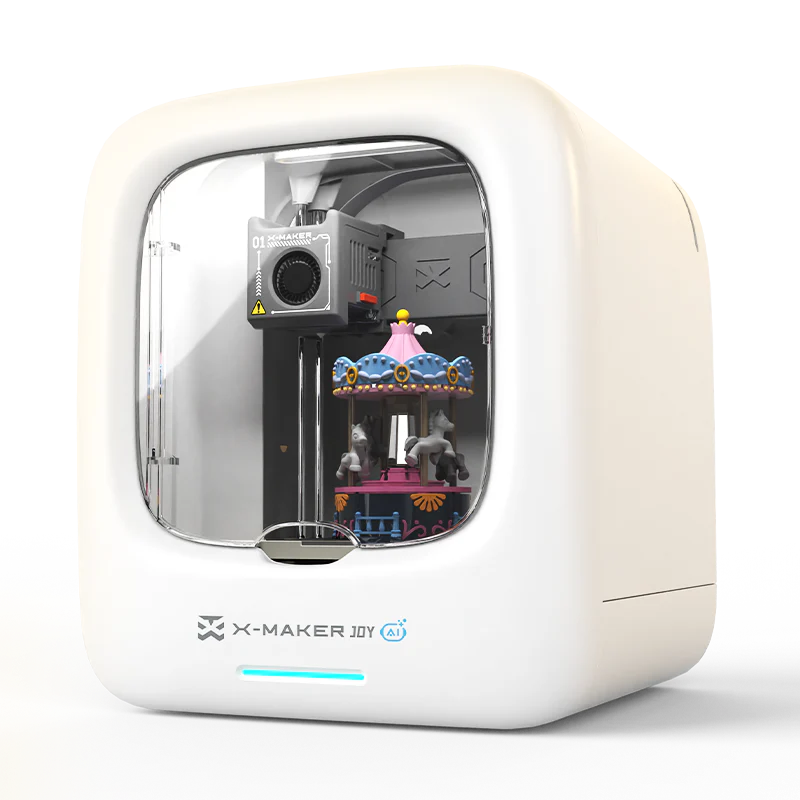
X-MAKER JOY Setup Guide: What the Child Does vs What the Parent Does
Setup anxiety is one of the most common reasons a 3D printer stays in its box longer than it should. The parent reads 'calibration' and 'filament loading' and puts the lid back on. The child sees it go back in the box and never asks about it again.
The X-MAKER JOY setup process is designed to prevent exactly this. Most of the technical work has already been done at the factory — the bed is pre-leveled, the printer ships calibrated and ready. What remains is mostly physical and takes under 30 minutes.
This guide shows how to split that 30 minutes between parent and child so both feel useful, no one feels overwhelmed, and the first print happens on the same day the box opens. Every section uses the same format: what the parent handles and what the child gets to do. For the full official setup documentation, visit the AOSEED X-MAKER JOY product page.
|
30 min
Total setup time — unbox to first print
|
Pre-calibrated
Factory-set — no manual bed leveling needed
|
App-led
Child operates independently after session 3
|
PLA only
Non-toxic — the right material for all ages
|
X-MAKER JOY Setup — 6-Step Overview
|
1
Unbox
|
2
Assemble
|
3
Filament
|
4
Network
|
5
First Print
|
6
Post-Print
|
|
Parent leads — child identifies parts
|
Parent secures — child hands tools
|
Parent loads — child watches and feeds
|
Parent sets Wi-Fi — child monitors app
|
Child chooses model — parent confirms
|
Parent confirms cool — child removes
|
What Makes the X-MAKER JOY Designed for Family Use

Before the unboxing starts, it helps to understand what the printer is designed to do and what it is designed not to require. The table below translates every relevant X-MAKER JOY feature into what it means on setup day and in regular sessions after that.
|
X-MAKER JOY Feature
|
Parent-Friendly Benefit
|
What It Means on Setup Day
|
|
Factory pre-calibrated
|
No manual calibration required on day one
|
Unbox → assemble → print. The bed is ready.
|
|
Fully enclosed design
|
Peace of mind — nozzle and hot bed inside sealed chamber
|
Child observes through the window — no reaching inside
|
|
App-led one-press printing
|
Child initiates print independently after setup
|
Parent's role reduces to oversight after session 3
|
|
2.4GHz Wi-Fi connection
|
Standard home network compatible
|
No special router needed — most home setups work
|
|
Magnetic build plate
|
Easy print removal — no scraping tools needed
|
Child can flex the plate to remove cooled prints safely
|
|
Quick Swap Nozzle
|
Maintenance without technical expertise
|
Nozzle replacements are user-level tasks — no technician needed
|
|
Built-in camera + timelapse
|
Parent can monitor from anywhere during the print
|
Check print progress from the kitchen or another room
|
The Initial Setup Process
The X-MAKER JOY Unboxing and Setup Instructions on the official AOSEED Wiki document every physical step with photos and video links. This section adapts those steps into the parent-child role-split format used throughout this guide.
Step 1 — Unboxing the X-MAKER JOY

|
STEP 1 · UNBOXING
|
|
Setup note: The X-MAKER JOY ships with DIY sticker sheets. Store these for the decoration phase — they are a reward for completing the first print, not a distraction during setup.
|
What's in the Box — Component Checklist
|
|
Component
|
Who handles it?
|
|
☑
|
X-MAKER JOY 3D printer
|
Parent — place on stable, level surface
|
|
☑
|
Power adapter (inside foam)
|
Parent — connect to dedicated socket
|
|
☑
|
200g PLA Silk filament spool (pre-loaded in some versions)
|
Child — help identify the spool and its color
|
|
☑
|
Magnetic build plate
|
Parent — place along edge of bed, child can hold it in position
|
|
☑
|
Spool holder
|
Parent installs at back, child can hand over the holder
|
|
☑
|
Calibration card
|
Parent uses for bed leveling if needed — factory pre-calibrated
|
|
☑
|
Quick Guide booklet
|
Child — browse and identify components in pictures vs physical
|
|
☑
|
DIY sticker sheets
|
Child — keep for decoration phase after first print
|
|
☑
|
Pliers (tool kit)
|
Parent — store for maintenance. Keep out of child's reach.
|
Step 2 — Assembling the Printer

|
STEP 2 · ASSEMBLY
|
|
Setup note: The magnetic build plate aligns to the bed edge by design — no precise measurement needed. If it slides freely and snaps flat, it is correctly positioned.
|
Preparing the Printer for Use
Step 3 — Loading the Filament

|
STEP 3 · FILAMENT LOADING
|
|
Setup note: The filament tip must be angled at 45 degrees and straightened — a curled or blunt tip is the most common cause of loading failure. The parent does the tip preparation; the child does the final push.
|
Step 4 — Connecting to the Network

The X-MAKER JOY Setup Instructions specify that the printer connects via 2.4GHz Wi-Fi only. This is the most common first-session difficulty — a household router broadcasting on 5GHz needs to have its 2.4GHz band enabled separately. The six-step Wi-Fi guide below covers the full connection process.
|
Step
|
Action
|
Notes
|
|
1
|
Open the AOSEED app on your smartphone or tablet
|
Apple App Store or Google Play — free download
|
|
2
|
Power on the X-MAKER JOY. Wait for the indicator light to show network search status
|
Indicator light: solid white = powered on, flashing = searching for network
|
|
3
|
In the app, tap Add Printer and follow the on-screen pairing instructions
|
Keep the phone within 2 metres of the printer during first connection
|
|
4
|
Select your home Wi-Fi network. Enter the password
|
Network must be 2.4GHz. If your router shows two networks (2.4 and 5GHz), select the 2.4GHz one
|
|
5
|
Wait for the printer indicator light to turn solid to confirm connection
|
If connection fails: restart the printer and router, then retry
|
|
6
|
Name the printer in the app. The child chooses the name.
|
Naming the printer is the child's first creative decision of the setup process
|
|
STEP 4 · NETWORK CONNECTION
|
|
Setup note: The printer requires 2.4GHz Wi-Fi. If the connection fails, check the router settings. Most dual-band routers display the 2.4GHz and 5GHz networks as separate networks — connect to the 2.4GHz one.
|
First Print Setup
Step 5 — Loading the First 3D Model and Starting the Print

|
The X-MAKER JOY First Print Promise
No slicer software. No manual bed leveling. No temperature settings. Open the app, tap the Toy Library, choose a model, and press print. The app handles every technical parameter automatically. The setup is complete when the child can do this last step independently.
|
|
STEP 5 · FIRST PRINT
|
|
Setup note: The Toy Library is organized by print time and model type. For the first session, choose a print under 20 minutes. The goal is not an impressive object — it is a complete session that builds the child's maker confidence.
|
The AOSEED Toy Library is updated weekly with new models. After the first session, it becomes the child's weekly browsing destination — the source of the 'what are we making this week?' conversation. It is organized by session length, age, and interest type, making project selection a child-led activity from session two onward.
Safety Guidelines During the Printing Process

The X-MAKER JOY's enclosed design handles the primary physical safety requirement automatically. The nozzle, heated bed, and moving belts are inside a sealed chamber. The child's interaction during printing is through the observation window — watching, not touching. These four guidelines complete the safety setup for every session.
|
✓
|
Observation window — not the door: The child watches through the window during active printing. The door stays closed until the print is complete and the cool-down period has passed (5 minutes after the printer stops).
|
|
✓
|
Cool-down before the child touches: Parent confirms the surface temperature before handing the printed object to the child. Touch the object yourself first. For the youngest children, wait the full 5-minute cool-down before any contact.
|
|
⚠
|
Parent does the filament loading: The extruder area involves a heated nozzle and moving components. Filament loading is a parent task across all first sessions. Children observe and learn the motion — they do not perform it alone until they have seen it done at least five times.
|
|
✓
|
PLA only — no alternative materials: The X-MAKER JOY is designed for PLA filament. PLA is non-toxic, plant-based, and produces minimal odor. The printer's settings are optimized for PLA. No first session requires any other material.
|
Step 6 — Post-Print Care
|
STEP 6 · POST-PRINT CARE
|
|
Setup note: The magnetic build plate makes first-session print removal the easiest part of the process. A gentle flex at the corners usually releases the object without any tools. If it does not release, cool for 2 more minutes and try again.
|
How to Encourage Kids to Design Their Own Prints
Moving from choosing pre-made models to designing originals is a natural progression that happens gradually across sessions. The goal of the first five sessions is not original design — it is complete session habit. Design independence builds from there.
Child Design Progression — Session by Session
|
Session Range
|
Child's Design Role
|
Tool Used
|
Example Output
|
|
Sessions 1–5
|
Selects model from Toy Library. Chooses filament color.
|
X-MAKER app Toy Library
|
Spinning top, ring, animal figurine in child-chosen color
|
|
Sessions 6–10
|
Selects model and adds name or initial before printing
|
X-MAKER app Name tool
|
Personalized keychain or custom nameplate
|
|
Sessions 11–20
|
Adjusts size of a model or combines two shapes in the app
|
X-MAKER app Design screen
|
Scaled figurine, personalized gift, modified animal
|
|
Session 20+
|
Designs from scratch using basic geometric shapes
|
X-MAKER app full design mode / Tinkercad
|
Original creation — character, gear, custom object
|
Introducing 3D Design Software
The X-MAKER app's beginner design tools are the right entry point for children who want to move beyond the Toy Library. The modification path is less intimidating than blank-canvas design: take an existing model, add a name, change a size, or add a detail. This produces a personalized object without requiring the child to invent the entire form.
What the parent does in the design introduction session:
-
Open the design screen together. Explain one feature at a time — not the whole interface.
-
Demonstrate how to add the child's name to a model before printing. Let them type it.
-
Explain scale: 'If we make it bigger, it will take longer to print. If we make it smaller, it will print faster.'
-
Do not redesign the child's decision. If they choose a color or a size that surprises you, let the print happen and discuss it afterward.
What the child does:
-
Type their name or choose an icon to add to the model.
-
Adjust the print size using the scale tool in the app.
-
Press Print when the design is complete.
-
Hold the finished personalized object and describe the creative decisions they made to produce it.
Customizing 3D Prints
For children who want to go further, the AOSEED X-MAKER creation kits are the natural next step — multi-session builds where the child designs individual components that assemble into a working mechanical toy. Each session builds one component toward the complete object. This format produces the strongest long-term maker engagement because the child invests in the object across multiple sessions rather than completing it in one.
Conclusion
The X-MAKER JOY setup is designed to be complete in under 30 minutes, with the first print starting the same day the box opens. The factory pre-calibration removes the most intimidating technical requirement from the parent's list. The app-led workflow removes the ongoing technical management from the parent's daily session involvement.
What remains is the creative experience — the child chooses, the printer executes, and the object appears. That is the experience the X-MAKER JOY setup process is designed to deliver as quickly and reliably as possible.
After the first session, the child has the session structure. After the fifth session, they have the independence. After the twentieth session, they have the creative confidence to design something original.
To compare the X-MAKER JOY with other models and check current availability, visit AOSEED 3D printers for kids.
FAQs
What is the first step when setting up the X-MAKER JOY?
The first step is unboxing — parent-led, with the child participating by identifying components against the Quick Guide booklet. The parent removes the printer from packaging, removes interior foam, locates the power adapter, and places the printer on a stable level surface. The child's role in Step 1 is identification and organization, which builds familiarity with the machine before it is powered on.
How do I connect the X-MAKER JOY to Wi-Fi?
Download the AOSEED app, power on the printer, and follow the app's Add Printer prompts. The printer requires a 2.4GHz Wi-Fi network — if your router broadcasts on 5GHz only, enable the 2.4GHz band in the router settings first. Enter the network password in the app. The printer's indicator light confirms a successful connection. The child's role in this step is to monitor the app's connection progress and choose the printer's name once paired.
How fast is the AOSEED X-MAKER JOY?
The X-MAKER JOY prints at a speed appropriate for family-quality PLA models. A small spinning top or whistle ring prints in 5 to 15 minutes. A flexi animal figurine prints in 30 to 60 minutes. A pull-back car or gear mechanism runs 45 to 90 minutes. Print speed is set automatically by the app based on the model and quality settings — the parent or child does not need to configure speed manually.
Do I need a computer to use a 3D printer like the X-MAKER JOY?
No. The X-MAKER JOY is operated entirely through the smartphone or tablet app. No computer, no separate slicing software, and no manual file management are required for standard home use. The app handles model selection, slicing, print settings, and monitoring. A computer can be used for more advanced design work — importing custom models via the app's design import function — but it is not required for any session in this setup guide.
How to reset the X-MAKER JOY?
A soft reset: power the printer off, wait 30 seconds, and power it back on. This resolves most connectivity and error state issues. A factory reset (if required) is available in the printer's Settings menu — follow the app's guided reset flow. Note that a factory reset clears the printer's Wi-Fi settings and requires the network connection to be re-established following the Wi-Fi setup steps in this guide.
Why is my X-MAKER JOY not connecting to Wi-Fi?
Three most common causes and fixes: (1) Router is on 5GHz only — check router settings and enable the 2.4GHz band or create a 2.4GHz separate network; (2) Too far from the router during first connection — bring the printer within 2 metres during initial pairing; (3) App and printer out of sync — restart both the printer and the app, then retry the pairing process from the Add Printer step.
How to unclog the X-MAKER JOY nozzle?
Standard first-session filament loading does not cause nozzle clogs. Clogs are most commonly caused by using filament that has absorbed moisture (filament stored open in a humid environment), printing at an incorrect temperature (non-AOSEED filament with different thermal requirements), or an incomplete purge cycle after a filament change. For a clogged nozzle: run the unload cycle from the app, perform a cold pull using the app's nozzle maintenance guide, or use the Quick Swap Nozzle replacement procedure for persistent blockages.
Can my child use the X-MAKER JOY independently?
After three to five sessions following the structure in this guide, most children between ages 7 and 12 can initiate, monitor, and complete a print session independently — selecting the model, loading the filament with prior instruction, pressing start, monitoring through the observation window, and reporting when the print is complete. Physical safety tasks (filament loading from scratch, post-print removal, nozzle maintenance) should involve adult oversight until the child has demonstrated consistent safe habits across at least 10 sessions.
What is the best material for printing with the X-MAKER JOY?
PLA is the only recommended material for the X-MAKER JOY for family use — and the only material the printer is optimized for. It is non-toxic, plant-based, low-odor, and requires no ventilation. AOSEED Silk PLA filament produces the smoothest surface finish and is the most reliably print-ready across the full temperature range. Do not use ABS, resin, or third-party materials with non-standard thermal profiles in family session contexts.
Sources
-
AOSEED Official Wiki — X-MAKER JOY Unboxing and Setup Instructions, X-MAKER JOY Unboxing and Setup Instructions, 2026.
-
AOSEED Official Wiki — X-MAKER JOY Setup Instructions, X-MAKER JOY Setup Instructions, 2026.
-
AOSEED Official Website — X-MAKER JOY User Guide, X-MAKER JOY User Guide, 2026.
-
AOSEED YouTube — X-MAKER JOY Setup Playlist (step-by-step video series), X-MAKER JOY Setup Playlist, 2026.
-
Reddit 3D Printing Community — Guide to Using AOSEED X-MAKER with OrcaSlicer (advanced users), Guide to Using AOSEED X-MAKER with OrcaSlicer, 2023.



Further reading

Thanksgiving STEM Activities for Kids: Table Projects and Simple Engineering Challenges
Thanksgiving dinner takes hours to cook. Most kids are bored within the first one.
A bag of cranberries, a box of toothpicks, a roll of foil and a few balloons can change that. Give those supplies ...

Halloween STEM Activities for Kids: Spooky Builds That Teach Real Science
Halloween hands kids a stack of ready made science questions. Why does a pumpkin foam over? Why do ghosts melt faster with salt? How much candy can a cotton swab bridge hold?
The 16 activities belo...

STEM Crafts for Kids: Build, Decorate and Test
Pick crafts kids can test, not just finish. Build it, make it theirs, measure what it does, then change one thing and try again.
A paper helicopter takes five minutes to fold. Timing ten drops, tri...
STEM Games for Kids: Logic, Math and Building Games to Play Together
Give a seven year old a worksheet and you get ten minutes of sighing. Give the same kid 20 sticks of spaghetti, some tape and a marshmallow, then say the tallest tower wins. Different afternoon.
ST...


